When you work in a network with multiple computers and network shares, mapping a network drive so that you can access it from File Explorer can be useful. Similarly, if you need to work with FTP locations, mapping them as network drives in File Explorer might be just what you need to be more productive. If you want to know how to map an FTP drive, a network drive, or a web share in Windows 10, read this tutorial:
NOTE: This guide applies to Windows 10 and should work the same in Windows 8.1. Also, if you've come across this article while searching for ways to delete mapped network drives instead of creating ones, read 4 ways to delete mapped network drives in Windows 10.
How to map a network drive in Windows 10
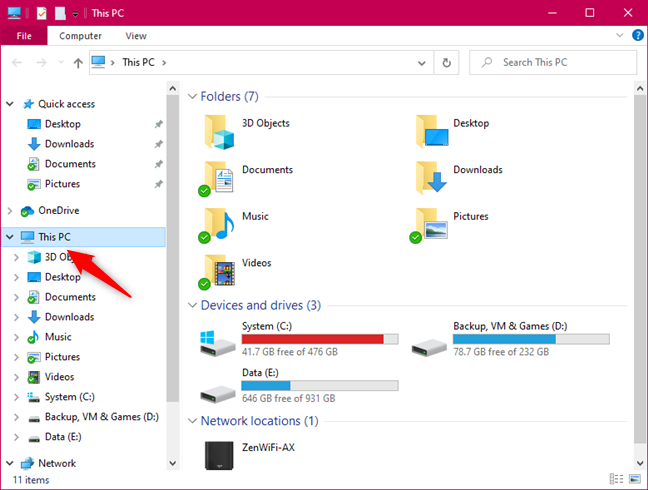
Mapping a network drive is quite useful if you often need to access a shared network drive or folder. When you do that, the mapped network drive is assigned a letter, and you can see and work with it directly from File Explorer. The first step to map a network drive is to open File Explorer. Inside its window, click or tap on This PC in the navigation pane from the left.
This PC in File Explorer
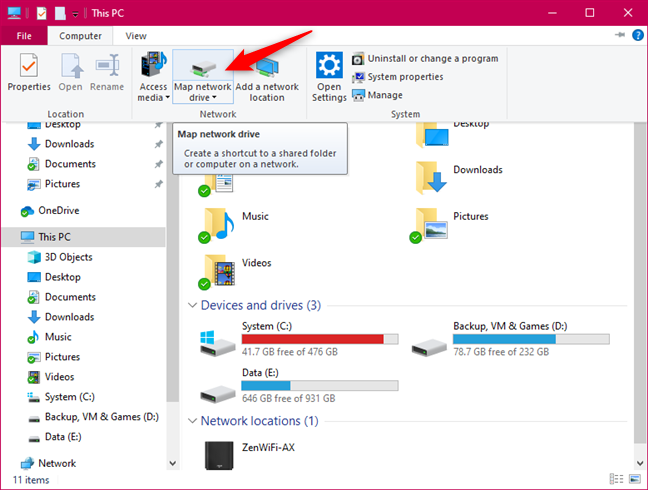
Next, open the Computer tab on the ribbon, and press the "Map network drive" button.
The Map network drive button from File Explorer
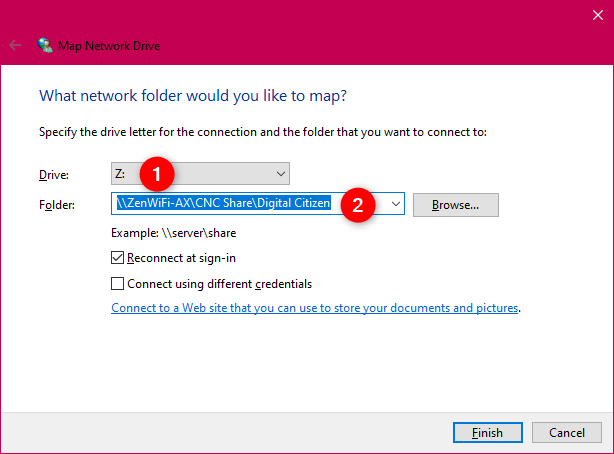
In the Map Network Drive wizard, choose the letter that you want to use for mapping the network drive. Then, if you know the path to the network folder to which you want to connect to, type it in the Folder field.
Choosing the folder to map as a network drive
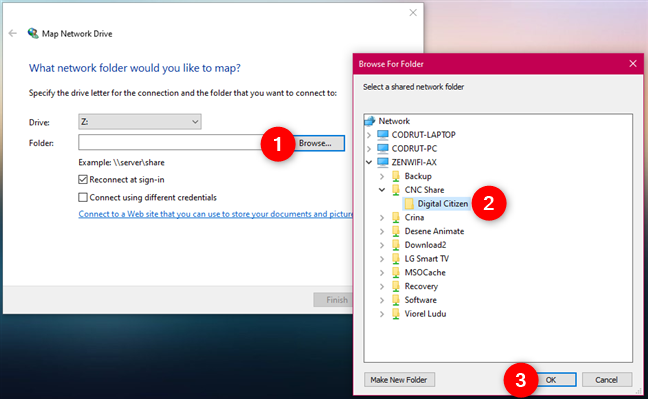
If you do not know the path to the network share, press Browse and navigate through the available network locations until you find the folder that you want to map as a network drive. Select it and press OK.
Browsing for the folder to map as a network drive
Check the option "Reconnect at sign-in" to ensure that the mapped network drive is permanent on your Windows 10 computer or device.
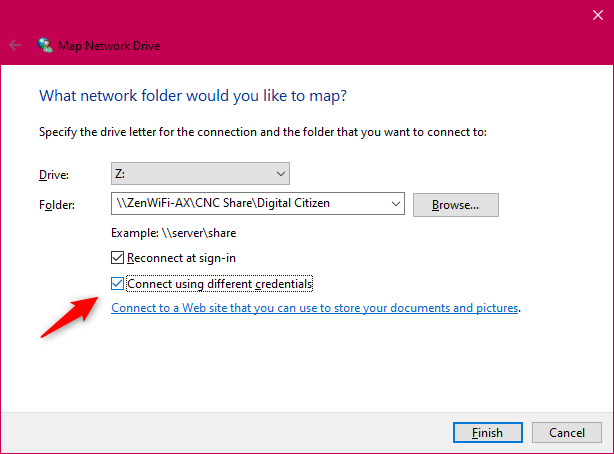
If you need to use credentials (username and password) from the networked computer to access the shared folder, check "Connect using different credentials" and then click or tap Finish.
Connect using different credentials
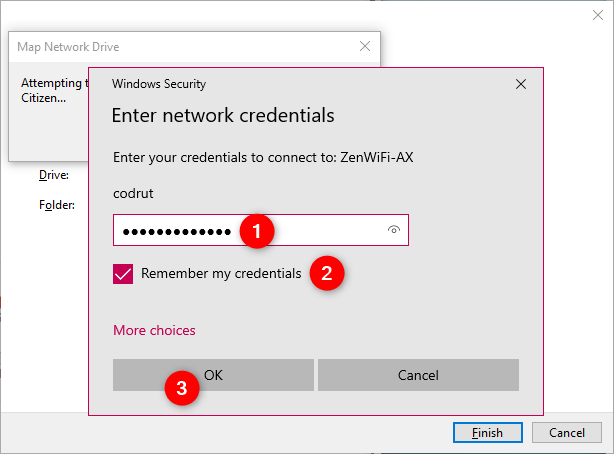
If you choose to connect using different credentials, you must enter them during the next step. Windows 10 might have already selected a user account for you. If that's the one you want, enter the password, check "Remember my credentials" to avoid inserting them every time you access this mapped network drive, and click or tap OK.
Entering the network credential to the mapped network drive
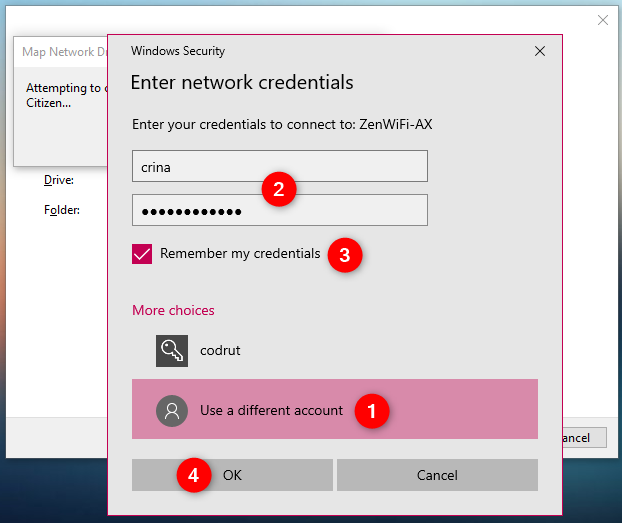
If you want to use a different user account, click or tap on More choices, select "Use a different account" and enter both the username and password of the user account that you prefer using. Then choose whether you want Windows 10 to "Remember [your] credentials" and press OK.
Choosing to use a different account to connect to the mapped network drive
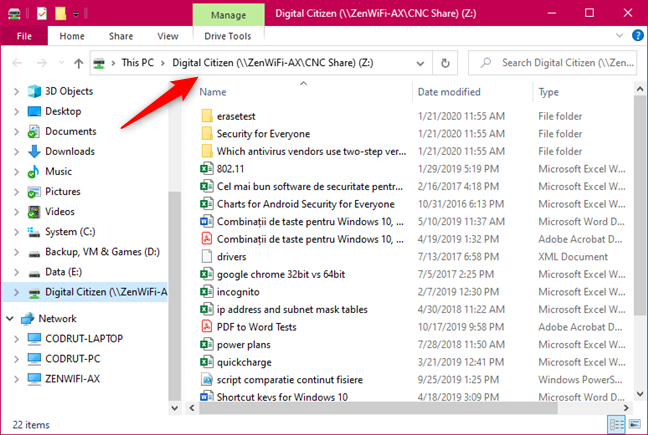
If everything worked according to your plan, Windows 10 connects to the mapped network drive and opens in a matter of seconds.
The mapped network drive is opened
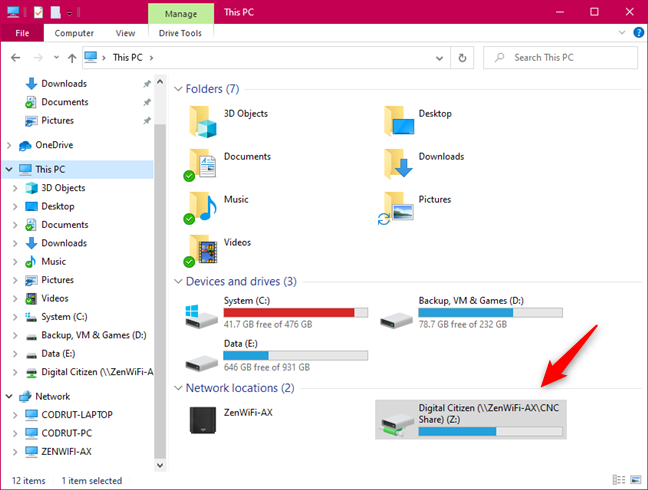
To access the mapped network drive later, return to File Explorer, go to This PC, and then check the list of available Network locations.
Mapped network drives are shown in File Explorer's Network locations
How to map an FTP drive in Windows 10
If you want to connect to map an FTP drive or other types of network locations such as a web share, you need to use a different wizard to get the job done.
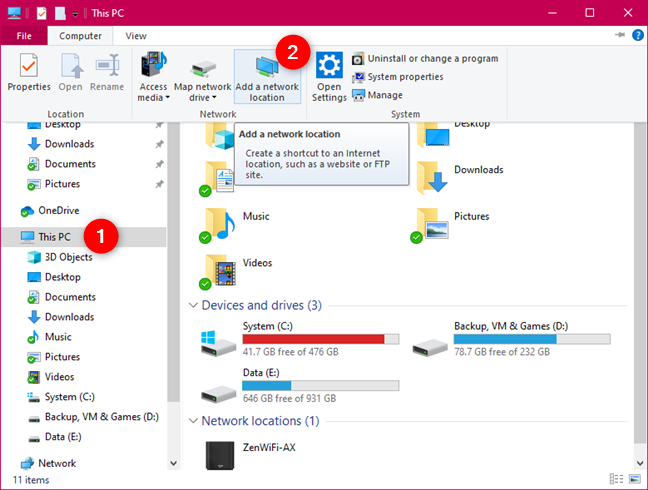
In File Explorer, click or tap on This PC in the navigation pane on the left side of the window. Then, open the Computer tab from the ribbon, and click or tap on the "Add a network location" button.
The Add a network location button from File Explorer
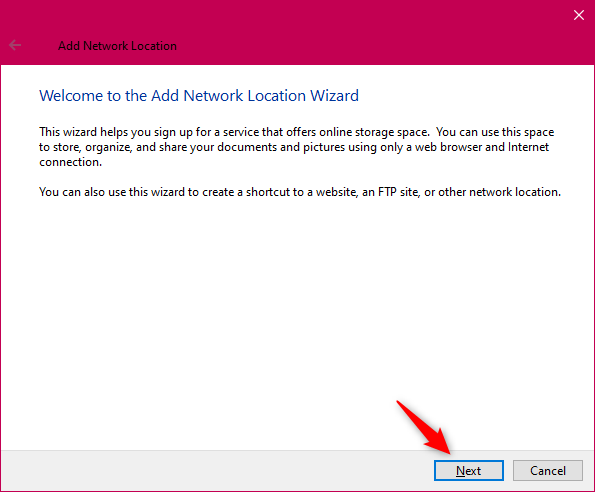
On the first step of the "Add Network Location" wizard, read the information it shares and press Next.
The Add Network Location wizard
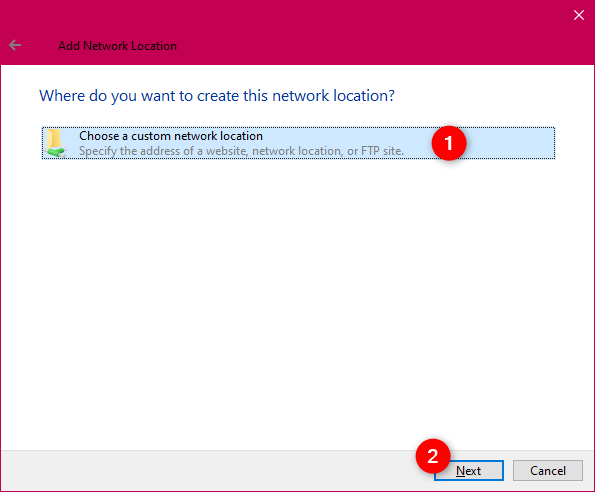
Select "Choose a custom network location" and click or tap Next.
Choose a custom network location
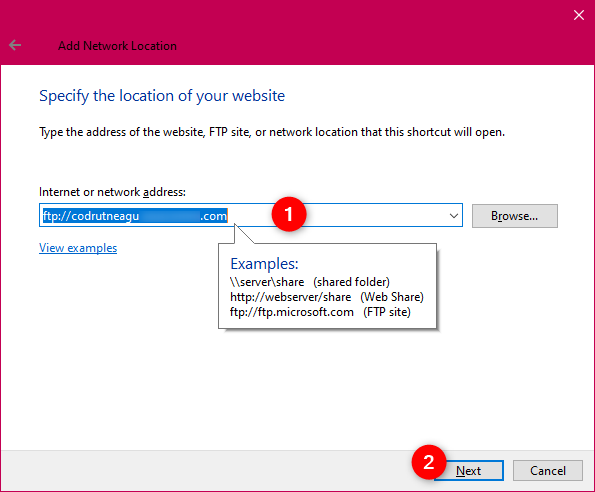
Enter the address for your desired network location in the "Internet or network address" text field. If you want to map an FTP drive, you should type something like ftp://ftp.domain.com. If you need to add a web share from a web server, type something like https://server_name_or_address/share. Once you have completed this step, click or tap Next.
Entering the internet or network address (FTP drive)
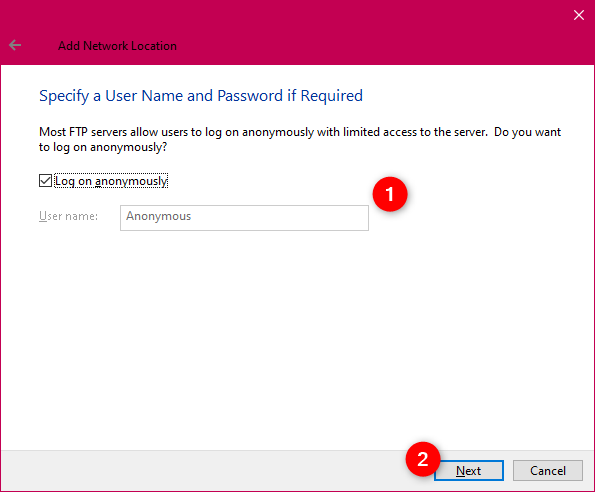
You are asked whether you need to specify a username and password to access the FTP drive that you want to add. If you do not, leave the "Log on anonymously" checkmark enabled. Otherwise, uncheck it and enter the username. Click or tap Next to move on.
Choosing to Log on anonymously or not
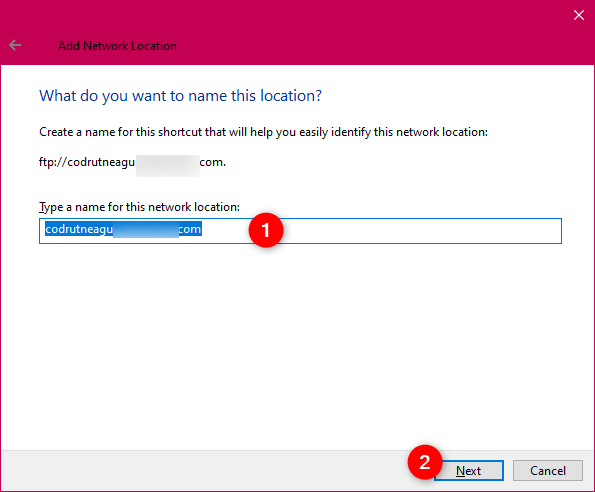
Enter a name for the FTP drive and press Next.
Choosing a name for the network location (FTP drive)
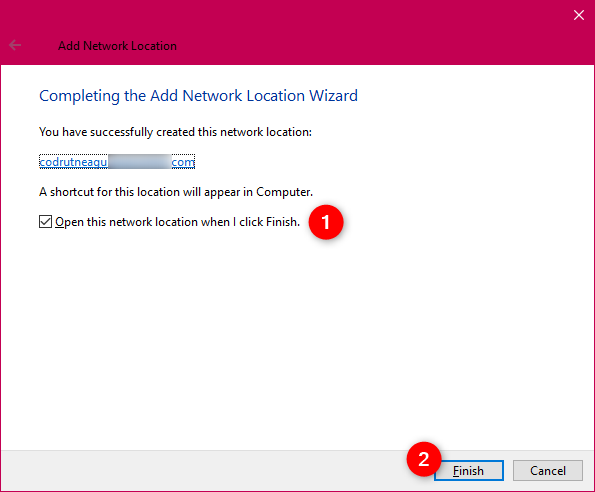
Choose whether you want to open the new FTP drive mapping as soon as the wizard ends. Then, press Finish.
Finishing the Add Network Location wizard
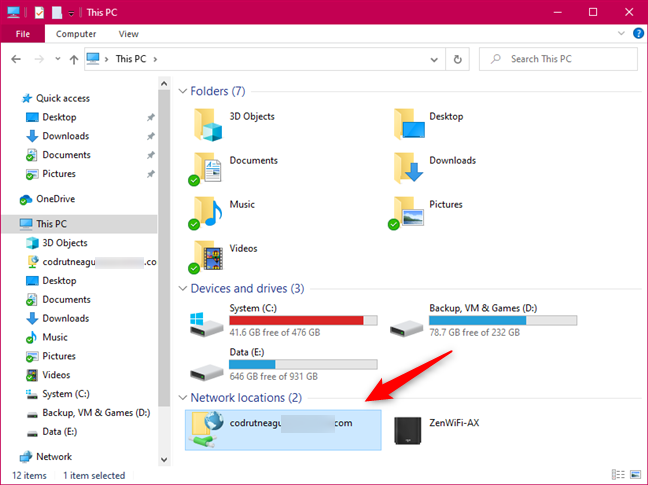
The newly mapped FTP drive is now added to File Explorer, and you can find it the Network locations list.
Network locations in File Explorer
To access a mapped FTP drive, double-click (or double-tap) on its name. Depending on how it is set up, you may need to enter a username and password to access its content. If credentials are required, you should see a pop-up requesting your account password: type it and select "Save password" to avoid entering it every time. Then, click or tap "Log on."
Did mapping drives and FTP in File Explorer work like you wanted to?
As you can see, it takes little time to map network drives, FTP, or other locations to your Windows PC or device. Once you are done, you can browse to these locations from File Explorer to add or access files, and you can easily save new files to these remote locations. It is convenient once done correctly. We'd like Windows 10 to allow us to map FTP drives and assign letters to them, just like we can do for network drives. Don't you also think that's a great idea? Use the comments below to tell us what you think.
How can I make the netwerk drive to be available for 2 or 3 accounts and/or on different devices?
I had made it all working with the use of FTPuse.
It still works on my laptop but no longer on my husbands laptop. why??
I tried to set it all up again. But the result is the same. On my laptop all works fine but on the other laptop no acces to our shared drive.
Any clues or hints?
Ciprian Adrian Rusen ·
Do the other computers have access to the same network? Did they set the network connection as Private (Trusted) instead of Public?
Annoyed ·
Clickbait. You did a lot of stuff, but not what you said this article was about. Lame.
Mike ·
it said in the search results that it would give directions on mapping an internet location in file explorer
does everything BUT that
Thanks!
suomynonA ·
Bad guide. Why would you censor part of the ftp url instead of simply using a fake url so we can see how it’s formatted? Instead of having “codrutneagu########com” (censored), why not do something like “codrutneagu.example.com”. Use placeholder examples instead of censoring parts of it.
Ed ·
I can see how you’re ADDING the ftp server to the windows explorer. Where is the mapping happening?
Mapping means associating it with a drive letter (A: to Z:)
Roger ·
Codrut, I have yet to get two computers networked since MS dropped Homegroup.
I have two machines, both running Win10 Pro, that were on a Workgroup.
With the last update I’ve managed to get very little communication between the two?
Win1064 sees Win1032 but pops an error when I try to connect.. Win1032 is not accessible???
Win1032 sees Win1064 and I can move files from the 64 bit machine to the 32bit machine. One way movement only????
Is there a replacement Tutorial available that outlines the steps to connect these two machines wirelessly, using a HotSpot? The machines are both in the same home office only a few feet apart.
Thanks
Rob ·
How do you add a network drive letter to a FTP site using WIN8.1 “Connect to a Website that you can use to store your documents and pictures.”
Razvan ·
It’s also important to mention that the FTP solution is read-only, which is kind of useless for the only reason it’s needed: web development !
pgarnek ·
Hi,
Sorry, but with my opinion, it’s not a tutorial to map ftp server as local drive.
After all, we see server in My Computer, but it’s not mapped to any drive, so external software (like Total commander for example) wouldn’t see this as a drive, so it’s useless in this kind of situations.



 Modified on 09.10.2025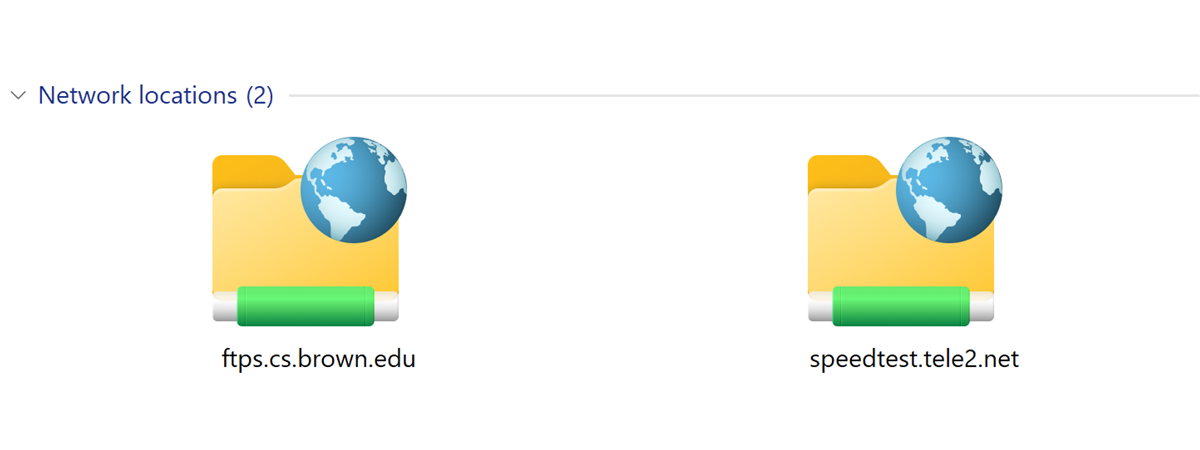







Discussion (10)
Hi,
How can I make the netwerk drive to be available for 2 or 3 accounts and/or on different devices?
I had made it all working with the use of FTPuse.
It still works on my laptop but no longer on my husbands laptop. why??
I tried to set it all up again. But the result is the same. On my laptop all works fine but on the other laptop no acces to our shared drive.
Any clues or hints?
Do the other computers have access to the same network? Did they set the network connection as Private (Trusted) instead of Public?
Clickbait. You did a lot of stuff, but not what you said this article was about. Lame.
it said in the search results that it would give directions on mapping an internet location in file explorer
does everything BUT that
Thanks!
Bad guide. Why would you censor part of the ftp url instead of simply using a fake url so we can see how it’s formatted? Instead of having “codrutneagu########com” (censored), why not do something like “codrutneagu.example.com”. Use placeholder examples instead of censoring parts of it.
I can see how you’re ADDING the ftp server to the windows explorer. Where is the mapping happening?
Mapping means associating it with a drive letter (A: to Z:)
Codrut, I have yet to get two computers networked since MS dropped Homegroup.
I have two machines, both running Win10 Pro, that were on a Workgroup.
With the last update I’ve managed to get very little communication between the two?
Win1064 sees Win1032 but pops an error when I try to connect.. Win1032 is not accessible???
Win1032 sees Win1064 and I can move files from the 64 bit machine to the 32bit machine. One way movement only????
Is there a replacement Tutorial available that outlines the steps to connect these two machines wirelessly, using a HotSpot? The machines are both in the same home office only a few feet apart.
Thanks
How do you add a network drive letter to a FTP site using WIN8.1 “Connect to a Website that you can use to store your documents and pictures.”
It’s also important to mention that the FTP solution is read-only, which is kind of useless for the only reason it’s needed: web development !
Hi,
Sorry, but with my opinion, it’s not a tutorial to map ftp server as local drive.
After all, we see server in My Computer, but it’s not mapped to any drive, so external software (like Total commander for example) wouldn’t see this as a drive, so it’s useless in this kind of situations.