


 Published on 22.03.2026
If you want better connectivity for apps like torrents or self-hosted services, you may need to turn on port forwarding in Proton VPN. This feature allows incoming connections through the VPN, which is normally blocked for security reasons.
However, Proton VPN supports port forwarding only under specific conditions, so it is important to understand how it works.
What Is Port Forwarding in Proton VPN?
Port forwarding allows external devices to connect to your system through a specific port while using a VPN.
Normally, VPNs block incoming traffic. With port forwarding enabled:
- You can receive incoming connections
- Improve torrent seeding speeds
- Run certain apps or services
It is mainly used for advanced networking tasks.
Requirements for Port Forwarding in Proton VPN
Before enabling it, make sure:
- You are using a Proton VPN paid plan
- You are connected to a supported server
- You are using the Proton VPN app on Windows
Free plans do not support port forwarding.
How to Turn On Port Forwarding in Proton VPN
Follow these steps carefully.
Step 1: Open Proton VPN App
Launch the Proton VPN app on your PC.
Step 2: Enable Advanced Features
- Go to Settings
- Open Advanced settings
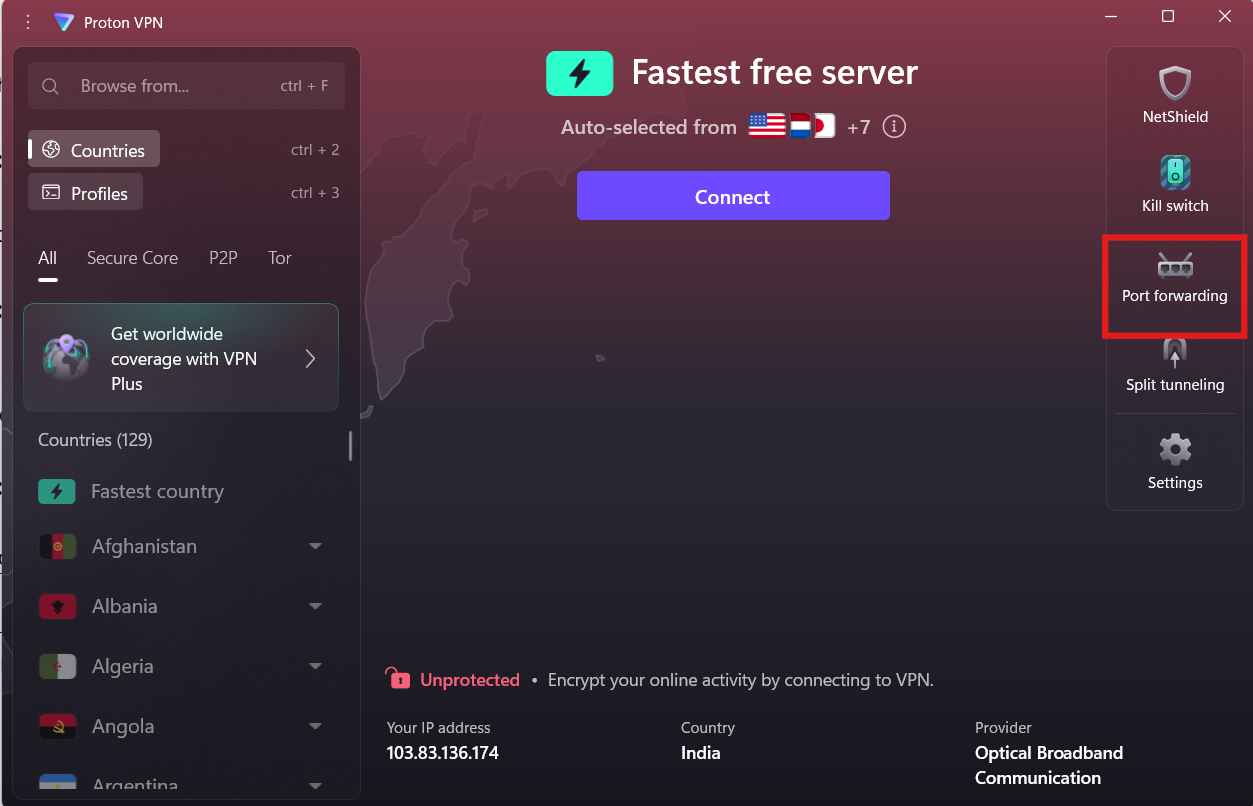
Step 3: Enable Port Forwarding
- Find Port Forwarding
- Toggle it ON
Once connected, Proton VPN will assign a random port number.
How to Check If Port Forwarding Is Working
To verify:
- Use a port checking tool
- Test your app (like torrent client)
- Check if incoming connections are active
If it works, your app should show improved connectivity.
Important Things to Know
- The port number changes every time you reconnect
- Not all servers support port forwarding
- It only works on certain platforms
- It may reduce some security if misused
Always use it carefully.
When Should You Use Port Forwarding?
Port forwarding is useful for:
- Torrenting (better seeding)
- Hosting small services
- Gaming (in some cases)
If you do not need incoming connections, you can keep it disabled.
Common Issues and Fixes
Port forwarding not working:
- Make sure you are on a supported server
- Reconnect to get a new port
- Check firewall settings
No port shown:
- Ensure feature is enabled in settings
- Use a paid Proton VPN plan
Final Thoughts
Learning how to turn on port forwarding in Proton VPN gives you more control over your network connections. While it is not needed for everyday browsing, it can significantly improve performance for specific use cases like torrenting.
Just remember that it requires the right plan and server, and should be used carefully.
FAQs
Is port forwarding available on Proton VPN free plan?
No. It is only available on paid plans.
Does the port stay the same?
No. It changes every time you reconnect.
Is port forwarding safe?
Yes, but it can expose your system if not used properly.
Why don’t I see port forwarding option?
It may not be available on your plan or platform.
Discussion (0)
Be the first to comment.