


 Published on 06.11.2025
Pairing your Plantronics Bluetooth headset is quick once you know where to look. Whether you’re connecting to a phone, tablet, or PC, the process follows a few universal steps that vary slightly by model. This guide walks you through everything from putting your headset in pairing mode to fixing common pairing errors.
1) Check your Plantronics headset model
Before you start, locate your headset’s model number. It’s usually printed on the inside of the earcup, headband, or near the charging port. Knowing your model ensures you press the right buttons to activate pairing mode.
2) Put your Plantronics headset in pairing mode
For Voyager and BackBeat Series

Press and hold the Call or Power button until the LED flashes red and blue, or you hear pairing. This means the headset is ready to connect to your device. Keep it nearby during the next steps.
For Savi and Discovery Models
Hold the Bluetooth button on the base or headset until the indicator light starts flashing. The flashing signal confirms the headset is in pairing mode and ready to link with your phone or computer.
For older models without voice prompts
Switch the headset off, then hold the Power or Talk button for about 5 to 8 seconds. Release the button once the light alternates between red and blue - this indicates pairing mode is active.
3) Pair the headset to your device
On Android
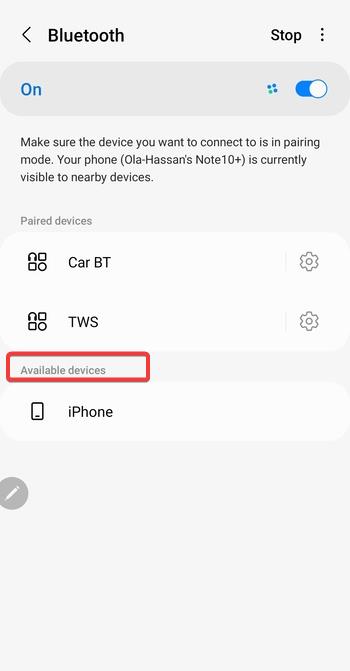
Open Settings › Bluetooth › Pair new device. Select your Plantronics headset from the list and tap it to connect. You’ll hear “connected” when pairing is successful.
On iPhone or iPad
Go to Settings › Bluetooth and turn Bluetooth on. Under Other Devices, tap your Plantronics headset. Once the label changes to Connected, your pairing is complete.

On Windows 10 or 11
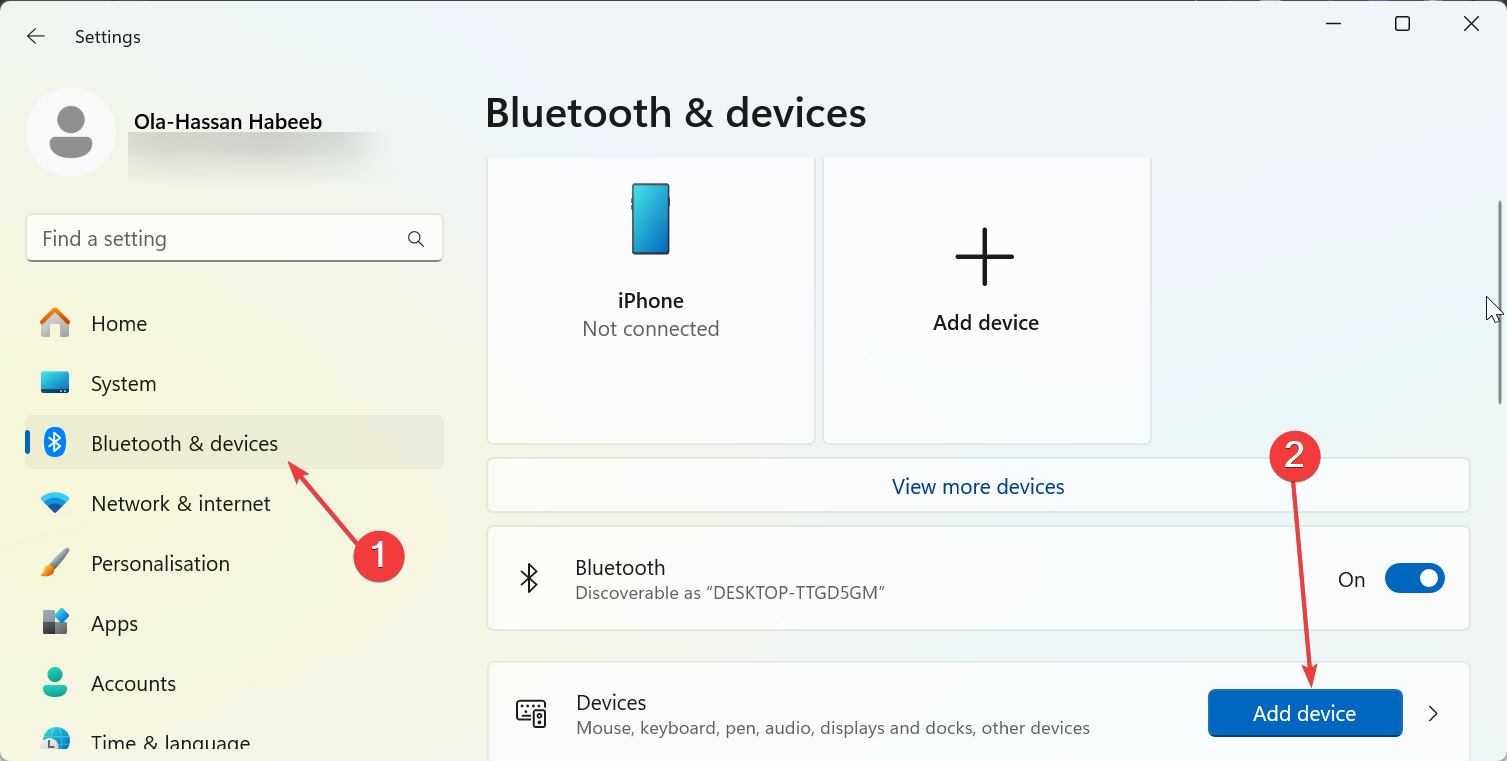
Click Start › Settings › Bluetooth & devices › Add device, then select Bluetooth. Choose your Plantronics headset from the list and confirm. Windows will install any needed drivers automatically.
On macOS
Open System Settings › Bluetooth and enable Bluetooth if it’s off. Select your Plantronics model and click Connect. When the LED stops flashing, the connection is complete.
4) Pair using a USB dongle (optional)
Some Plantronics headsets ship with a dedicated USB Bluetooth adapter. Plug it into your PC and power on the headset. The devices will automatically pair, providing a more stable connection for calls and video meetings.
5) Connect to multiple devices
Modern Plantronics models support two active Bluetooth connections. This lets you link your headset to a laptop and phone at the same time, switching between them seamlessly for work and personal calls.
To confirm the success of your connection, look for a steady blue LED light or listen for Device connected. You can also check your phone’s Bluetooth settings to confirm the headset’s status shows as connected.
Quick reference table – Pairing buttons and LED colors
| Model | Pairing Button | LED Indicator | Voice Prompt | Passcode |
|---|---|---|---|---|
| Voyager 5200 | Call button | Red/Blue flash | “Pairing” | 0000 |
| BackBeat FIT | Power button | Red/Blue flash | “Pairing” | 0000 |
| Savi 8200 | Base Bluetooth button | Flashing white | None | 0000 |
| Discovery 600 | Power/Talk | Red/Blue flash | None | 0000 |
Troubleshooting pairing issues
- Reset the headset: Turn off your headset. Hold Power and Volume Down until the LED flashes purple. This resets the Bluetooth list and fixes most connection errors.
- Remove old pairings: Delete older entries under your phone or PC’s Bluetooth settings. Conflicting saved connections often block new pairing attempts.
- Charge before pairing: A low battery may stop your headset from entering pairing mode. Always connect it to a charger for at least 10 minutes before trying again.
- Update Bluetooth drivers or firmware: On Windows, use Device Manager to check for Bluetooth driver updates. For Plantronics-specific firmware, use the Poly Lens desktop tool to keep your headset running smoothly.
Tips for a stable Bluetooth connection
- Keep your headset within 30 feet (10 meters) of your device.
- Avoid thick walls or interference from Wi-Fi routers.
- Turning off unused Bluetooth devices nearby can also help improve stability.
FAQs about pairing Plantronics Bluetooth headsets
Why won’t my Plantronics headset show up on Bluetooth? Your headset may already be paired with another device. Disconnect or reset it first, then try again on the device you want to use.
Can I pair my headset to multiple phones? Yes. Most models let you connect to two Bluetooth devices simultaneously. The headset will switch automatically to the device currently playing audio.
What’s the default PIN for Plantronics pairing? Enter 0000 when prompted. This is the universal pairing code for most Plantronics and Poly headsets.
Summary
- Identify your Plantronics model before pairing.
- Activate pairing mode using the right button combination.
- Connect the headset to your phone or PC’s Bluetooth menu.
- Look for a steady blue light or “Connected” status to confirm success.
- Reset or update drivers if you face pairing errors.
Conclusion
Pairing a Plantronics Bluetooth device with your smartphone or computer is a straightforward process that enhances your audio experience. By following the simple steps outlined in this guide, you can easily connect your device and start using it for hands-free calls, music, or other audio applications.
If you encounter any issues during the pairing process, double-check the Bluetooth settings and ensure the device is in pairing mode. With a properly paired Plantronics Bluetooth, you'll enjoy seamless connectivity and clear audio quality.

Discussion (0)
Be the first to comment.