




SteamVR is the platform that powers virtual reality gaming on PC. It connects your VR headset to Steam’s massive library of immersive content. Whether you’re using a Meta Quest, HTC Vive, Valve Index, or Windows Mixed Reality headset, you’ll need SteamVR to make it all work. This guide explains how to download, install, and troubleshoot SteamVR on Windows step by step.
Step 1: Check if your PC meets SteamVR requirements
Before downloading Steam VR, make sure your PC is powerful enough to handle virtual reality. You’ll need a modern CPU, a VR-ready GPU, at least 8 GB of RAM, and Windows 10 or newer.

To verify, run the SteamVR Performance Test. It checks your hardware and shows whether your system can deliver smooth frame rates for VR gameplay.
Step 2: Install the Steam Client
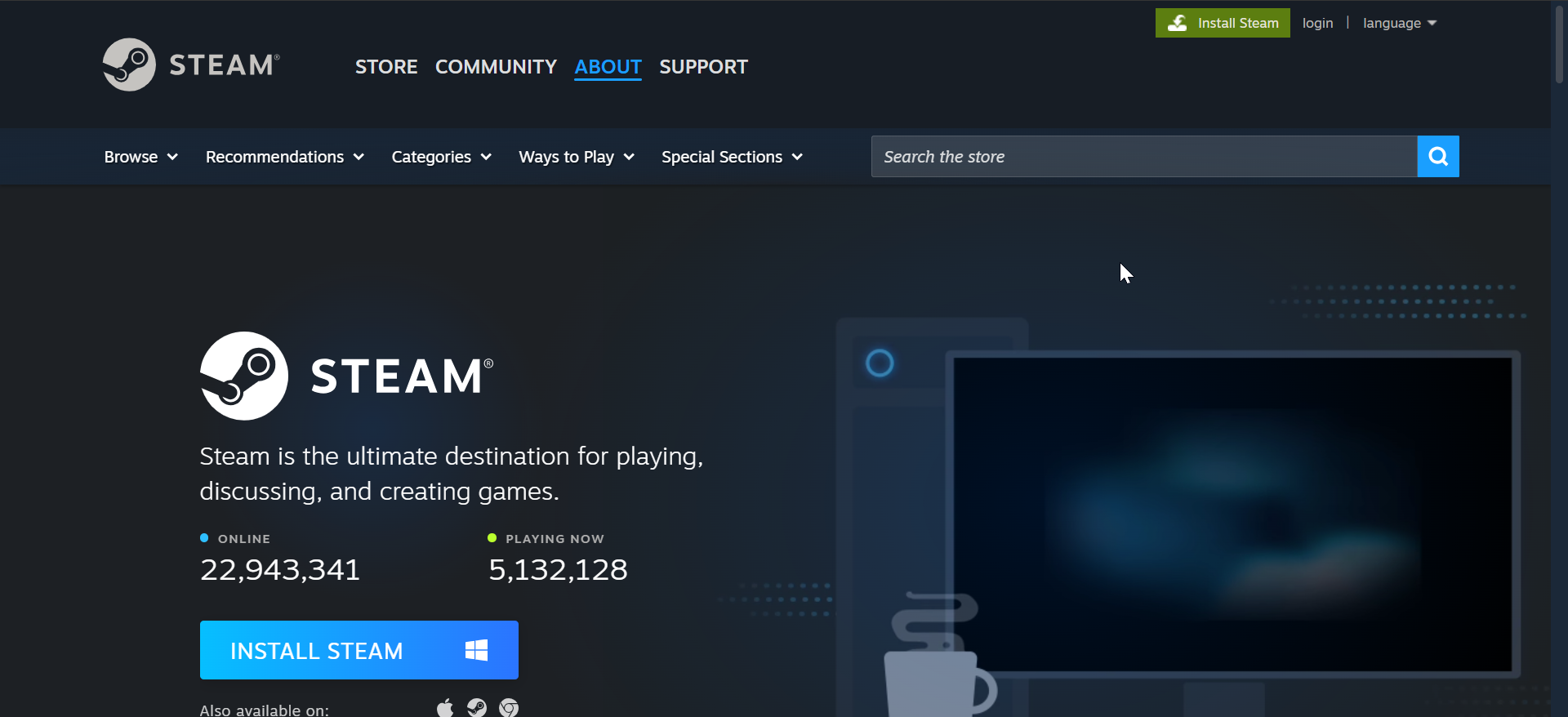
SteamVR runs through the Steam platform. Open your browser, go to https://store.steampowered.com/about, and click the INSTALL STEAM button to download the installer. Once downloaded, run the installer and follow the prompts to complete setup.
After installation, launch Steam, log in with your account, or create a new one. The Steam Store and Library will now be available for installing SteamVR.
Step 3: Download and install SteamVR
Inside Steam, type SteamVR in the Store search bar. Open the result and click Install. Choose your installation drive and let Steam download the package - about 6 GB, depending on the version.

Once installed, SteamVR appears under your Library’s Tools section. You can launch it manually or set it to start automatically when your headset connects.
Step 4: Connect and set up your VR headset
Connect your VR headset to the PC using the required USB and video cables. SteamVR automatically detects compatible devices like Meta Quest (via Link or Air Link), HTC Vive, Valve Index, and Windows Mixed Reality.
Allow a few moments for Windows to install headset drivers. Once connected, you should see your headset and controllers listed as active in the SteamVR window.
Step 5: Run Room Setup and calibrate
Before playing, you need to configure your play space. In SteamVR, click the menu icon and select Run Room Setup. Choose Standing Only for seated or stationary play or Room-Scale for full movement tracking.
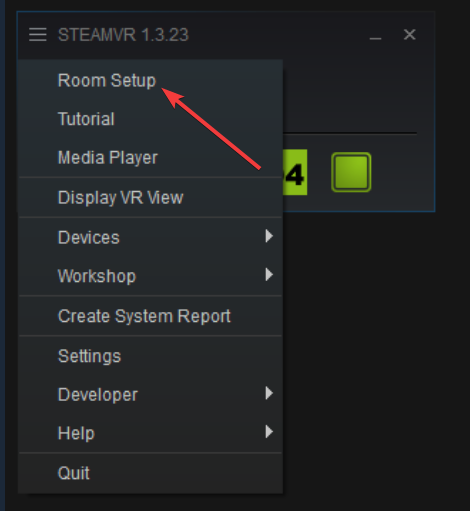
Follow the on-screen guide to define floor height and safe boundaries. Proper calibration ensures accurate tracking and comfort during gameplay.
Step 6: Launch a VR game or app
Go to your Library → VR section in Steam. Select a game or app and click Play in VR. If you’re new to VR, try free titles to test performance before purchasing larger games.
Troubleshooting: Fix common SteamVR issues
- SteamVR not installing: If Steam VR download or installation fails or stalls, close Steam and reopen it as administrator. Check that your antivirus or firewall isn’t blocking downloads and confirm enough disk space is available for SteamVR’s files.
- Headset not detected: Replug headset cables and restart SteamVR. Try different USB ports or update the headset’s firmware and drivers. Restarting the PC can also help Windows reinitialize the connection.
- Performance drops or black screen: If you experience lag or a black display, update your GPU drivers and reduce resolution scaling inside SteamVR settings. Restart the runtime to reset tracking and display functions.
Tips for a Better SteamVR Experience
- Keep your graphics drivers and headset firmware updated.
- Use a wired Link connection instead of Wi-Fi for Meta Quest headsets.
- Clear obstacles in your play area before using Room-Scale mode.
- Enable Motion Smoothing in SteamVR settings for a steadier frame rate.
- Restart SteamVR periodically to refresh tracking and USB services.
FAQs
Is SteamVR free? Yes, SteamVR is completely free. You only need to pay for individual VR games or apps available on Steam.
Can I use SteamVR without a headset? You can install and open SteamVR, but you’ll need a connected headset to run VR content. Without one, most apps will not launch correctly.
Does SteamVR work on laptops? Yes, if your laptop’s GPU meets VR-ready specifications. Use the SteamVR Performance Test to check compatibility before installing.
Summary
- Confirm your PC meets VR hardware requirements.
- Install the Steam client and sign in.
- Download SteamVR from the Steam Store.
- Connect and calibrate your headset.
- Launch your first VR game and adjust performance settings.
Conclusion
Installing SteamVR takes only a few minutes and unlocks access to a world of VR experiences. With compatible hardware, the Steam client, and a properly calibrated headset, you’ll enjoy smooth, immersive gameplay.

Discussion (0)
Be the first to comment.