




When you browse the internet, web browsers store your browsing history, including visited websites, searches, and downloads. While this can be helpful, it also poses privacy concerns. Whether you're trying to safeguard your personal information or declutter your browser, learning how to completely erase browser history is a crucial skill.
In this guide, we’ll walk through the steps for clearing your browsing history across popular browsers, including Google Chrome, Mozilla Firefox, Safari, Microsoft Edge, and Opera. We’ll also discuss the importance of browser extensions that can help in erasing your digital trail more efficiently.
By the end of this guide, you’ll know how to clear your browsing history and protect your privacy. Let’s dive in.
Step 1: Clearing Browser History on Google Chrome
Google Chrome is one of the most popular web browsers. To clear your browsing history, follow these steps:
- Open Google Chrome Settings: Launch Chrome and click on the three-dot menu in the top-right corner. Select “History.”
- Access History Settings: In the History tab, click “History” again to go to the full list of your browsing activity.
- Choose Browsing Data to Clear: On the left side, click “Clear browsing data.” A pop-up window will appear.
- Select Data to Clear: Here, you can select the time range and choose the types of data to erase, such as browsing history, cookies, and cached files.
- Clear Data: After making your selections, click the “Clear data” button.

By following these steps, you’ll be able to erase your browsing history on Google Chrome and enhance your privacy.
Step 2: Deleting Browser History on Mozilla Firefox
Mozilla Firefox allows you to clear browsing history easily. Here's how:
- Access Firefox History: Click the three horizontal lines in the top-right corner. Select “Library” and then “History.”
- Clear Recent History: Click “Clear Recent History,” then select the time range and the types of data to delete, including browsing and download history.
- Delete Data: Click “Clear Now” to remove your browsing history.
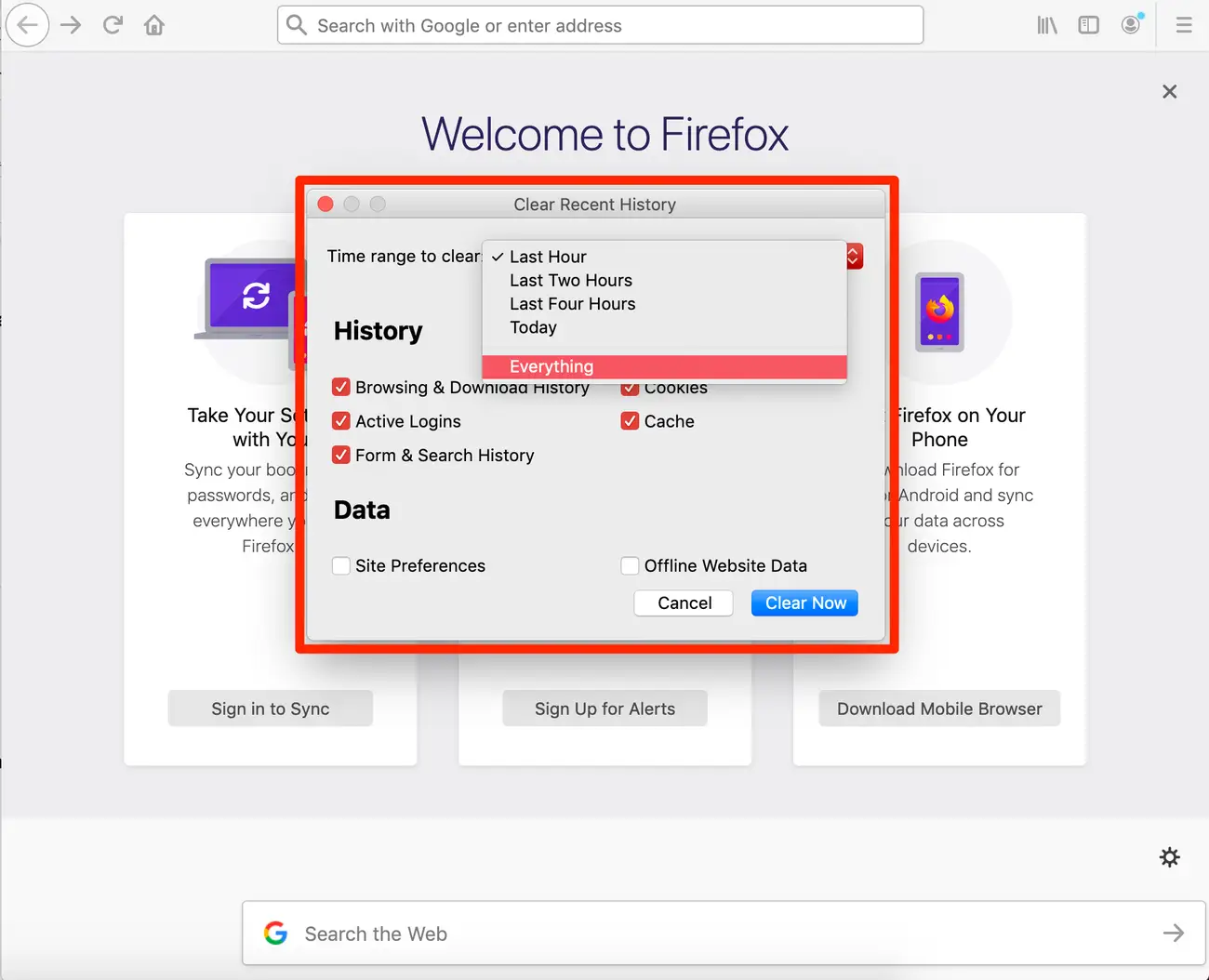
Clearing history regularly ensures that your Firefox activity stays private and secure.
Step 3: Erasing Browser History on Safari
Whether on Mac, iPhone, or iPad, Safari allows you to clear your browsing history with a few simple steps.
On Mac:
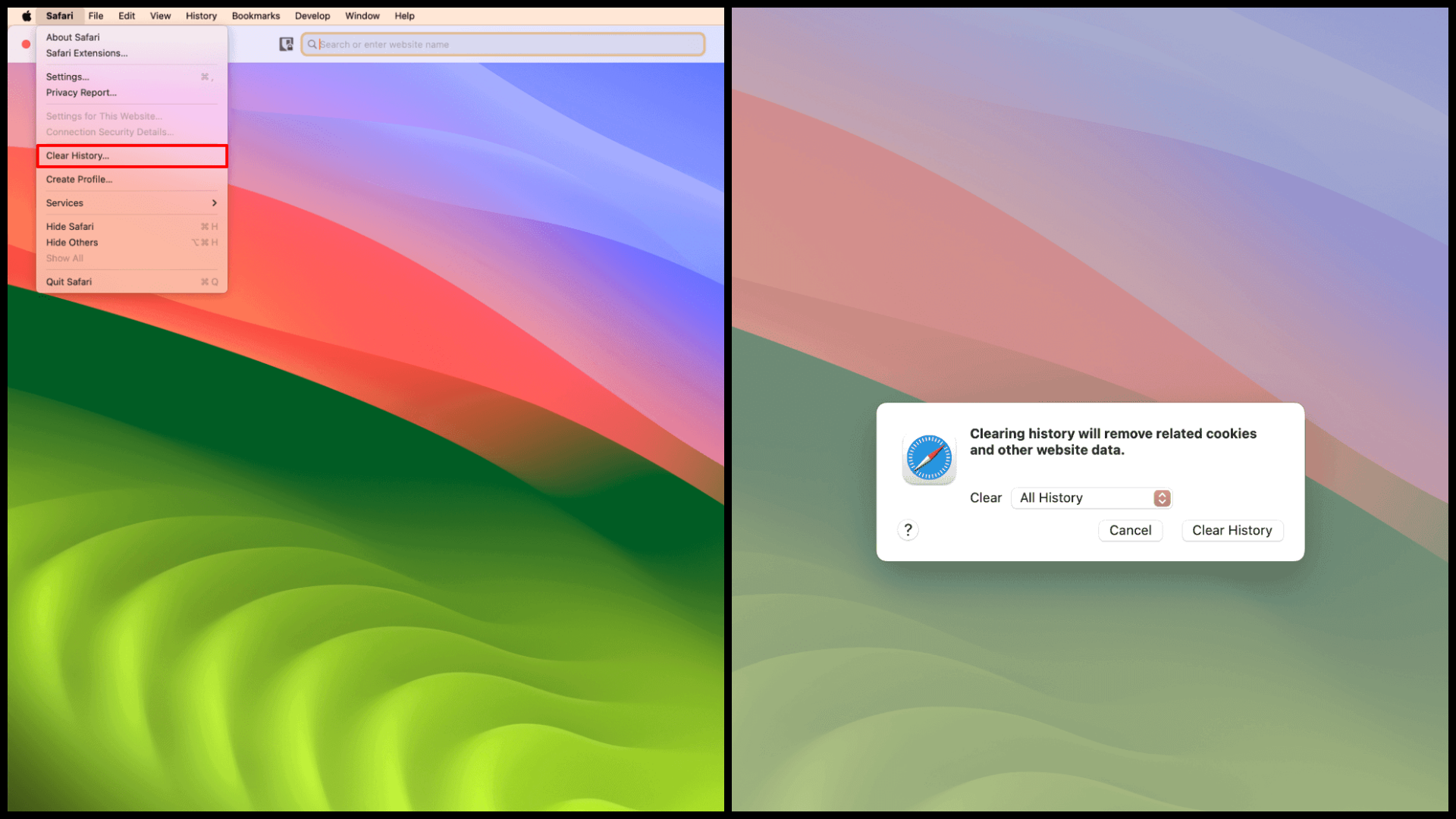
- Open Safari Preferences: Click "Safari" in the top menu and select "Preferences."
- Navigate to Privacy: Under the "Privacy" tab, click “Remove All Website Data.”
- Confirm Data Removal: Click “Remove Now” to clear your browsing history.
On iPhone/iPad:
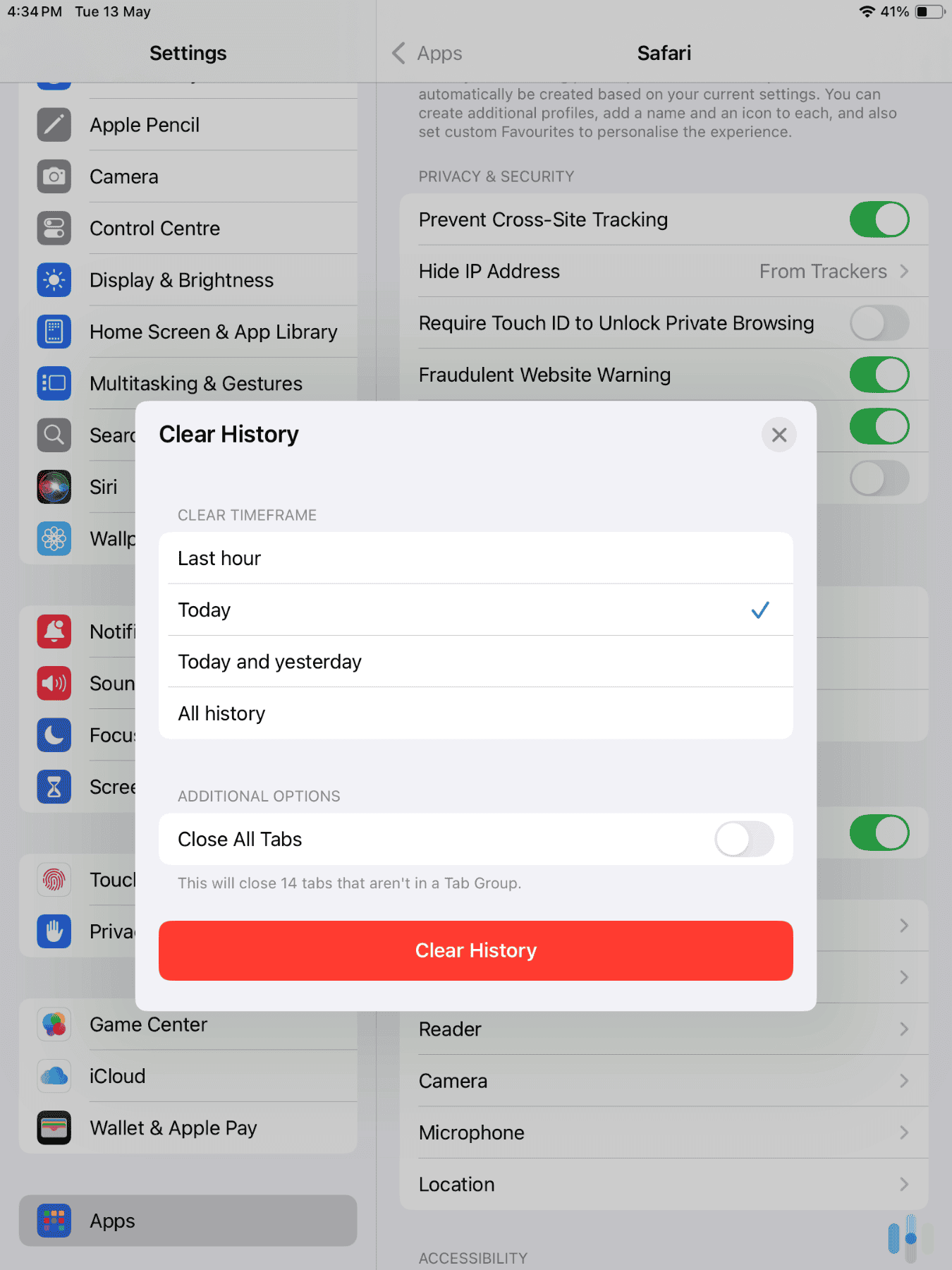
- Access Safari Settings: Go to “Settings” and tap on “Safari.”
- Clear History and Website Data: Scroll down and tap “Clear History and Data” to remove all browsing traces.
Step 4: Removing Browser History on Microsoft Edge
To clear your browsing history in Microsoft Edge:
- Open Edge Settings: Click the three dots in the top-right corner and select “History.”
- Choose Data to Clear: Click “Clear browsing data” and choose which data to erase.
- Confirm Data Removal: Click “Clear now” to remove your history and other selected data.

Step 5: Clearing Browser History on Opera
Follow these steps to clear history on Opera:
- Open History Settings: Click the Opera menu in the top-left corner and hover over “History.”
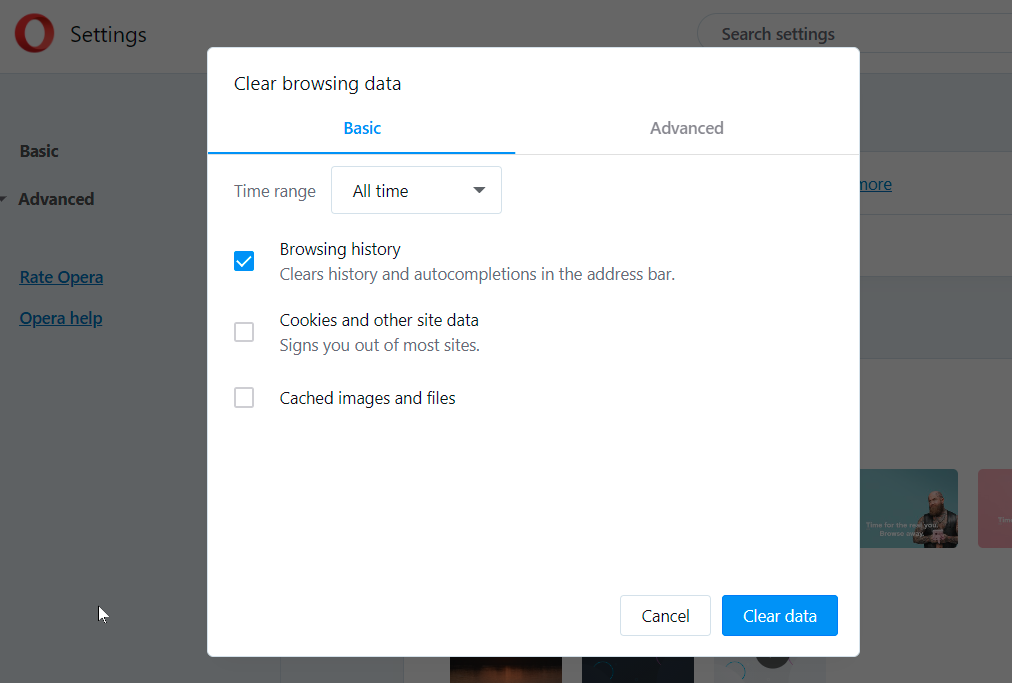
- Clear Browsing Data: Select “Clear browsing data” and choose what to delete.
- Confirm Data Deletion: Click “Clear data” to erase all the selected data.
Step 6: Using Browser Extensions for Complete Erasure
In addition to browser’s native tools, extensions like “Click&Clean,” “Privacy Badger,” and “uBlock Origin” can offer enhanced privacy by clearing browsing history and blocking ads and trackers.
Using extensions can further safeguard your privacy, helping you erase cookies, cached files, and more. Just ensure that you download extensions from trusted sources to avoid security risks.
Conclusion
Clearing your browser history is an essential part of maintaining privacy and securing personal data. Whether you're using Google Chrome, Mozilla Firefox, Safari, Microsoft Edge, or Opera, the steps to erase browsing history are straightforward. Additionally, using privacy extensions can help achieve a more thorough erasure.
Regularly clearing your browsing history will help prevent targeted ads, protect sensitive information, and keep your digital footprint in check. By following the steps in this guide, you can stay in control of your online presence and enhance your browsing security.


Discussion (0)
Be the first to comment.