




Here’s a clear, thorough guide on how to access the Microsoft Edge bookmarks location on your device. You’ll find steps, file paths, and tips for Windows, macOS, and Linux. I also include a table and FAQs to help you use this information practically.
Microsoft Edge stores bookmarks in a file called Bookmarks. This file holds all your saved favorite sites in a structured format. You can open it with a plain-text editor like Notepad if you need to inspect the data.
Where Edge Stores Bookmarks on Windows
On Windows, Edge keeps bookmarks inside the user profile folder. This folder is hidden by default in File Explorer. You can go directly there with the Run window.
- Press Windows + R.
- Type or paste:
%localappdata%\Microsoft\Edge\User Data\Default
and press Enter.
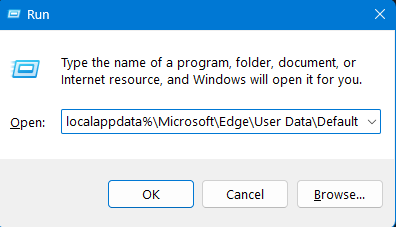

- Look for a file named Bookmarks in this folder.


If you use more than one Edge profile, you will see folders such as Profile 1, Profile 2, and so on. Bookmarks for each profile live inside the respective folders, also with a file named Bookmarks.
macOS Location for Edge Bookmarks
Bookmarks for Edge on Mac computers live in your user Library. You can open them like this:
- Open Finder.
- Press Command + Shift + G.
- Enter this path:
/Users/[YourUserName]/Library/Application Support/Microsoft Edge/Default - Find the Bookmarks file inside that folder.
macOS also uses a similar folder structure for custom profiles. If you use a second profile, look in the matching subfolder instead of Default.
Linux Location for Edge Bookmarks
For Linux users, the path follows the standard config layout:
/home/[YourUserName]/.config/microsoft-edge/Default
Inside this folder, the Bookmarks file holds the favorites you saved in Edge.
Why You Might Not See the Bookmark File
This file might not appear if:
- Edge has no bookmarks for the profile you are checking.
- File Explorer hides the AppData or Library folder.
- The profile is new and you have not saved any bookmarks yet.
To make hidden folders visible in Windows, open File Explorer and enable Show hidden items under the View menu. On macOS, Library is hidden by default but can be accessed through the Go to Folder command.
Quick Backup and Restore Tips
You don’t need to open the Bookmarks file every time you want to back up favorites.
Export Favorites from Edge
- Open Edge.
- Press Ctrl + Shift + O to open the Favorites manager.
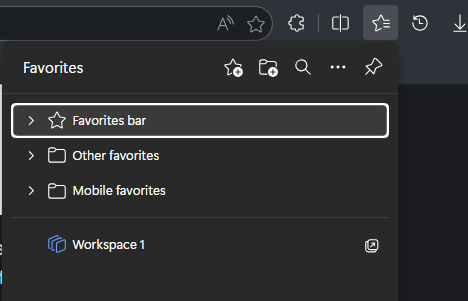

- Click the three dots in the Favorites panel.
- Select Export favorites and save the HTML file.
Manual Backup
- Copy the Bookmarks file from the folder above.
- Paste it into a safe place like a USB drive or cloud storage.
- For a full profile backup, copy the entire User Data folder.
Edge Bookmarks Location by Operating System
| System | Bookmarks Path | Notes |
|---|---|---|
| Windows | %localappdata%\Microsoft\Edge\User Data\Default\Bookmarks | Default profile bookmarks |
| Windows (multiple profiles) | %localappdata%\Microsoft\Edge\User Data\Profile X\Bookmarks | X is profile number |
| macOS | /Users/[User]/Library/Application Support/Microsoft Edge/Default/Bookmarks | Use Go to Folder |
| Linux | /home/[User]/.config/microsoft-edge/Default/Bookmarks | Similar to Chrome layout |
Frequently Asked Questions
What happens if I open the Bookmarks file?
You see text in JSON format. It lists bookmark titles and URLs. Avoid editing it directly unless you know JSON.
Can Edge sync bookmarks across devices?
Yes. If you sign in with your Microsoft account and enable sync, bookmarks move across devices automatically.
Does the bookmark file have a backup?
Edge also keeps a file called Bookmarks.bak in the same folder. This file can help if the main Bookmarks file gets corrupted.
Can I restore bookmarks from a broken PC?
Yes. If you access the hard drive, copy the Bookmarks file from the paths noted above and place it into the same folder on a working PC with Edge closed.
Summary
Microsoft Edge stores all bookmarks in a file named Bookmarks inside your profile directory. On Windows, this location is under %localappdata%, while macOS and Linux use their respective user support directories. You can open the folder directly or use Edge’s export tool to back up favorites. For profiles beyond the default one, check the Profile X folders for separate Bookmarks files.

Discussion (0)
Be the first to comment.