




If your search engine keeps changing to Yahoo in Chrome, it usually means a browser extension, unwanted program, or modified browser setting is forcing Chrome to use Yahoo instead of your preferred search engine.
This issue often happens after installing free software or browser extensions that change search settings without clear permission. Fortunately, you can fix it by removing suspicious extensions and restoring Chrome’s default search engine settings.
Why Chrome Search Keeps Changing to Yahoo
Several things can cause Chrome to redirect searches to Yahoo.
Common causes include:
- Suspicious browser extensions
- Browser hijacker malware
- Installed software modifying browser settings
- Changes to Chrome’s default search engine
Even if Yahoo itself is legitimate, forced redirects often indicate unwanted software.
Change the Default Search Engine in Chrome
The first step is to set your preferred search engine again.
- Open Google Chrome.
- Click the three-dot menu in the top-right corner.
- Select Settings.
- Click Search engine in the left sidebar.
- Choose your preferred search engine (such as Google).
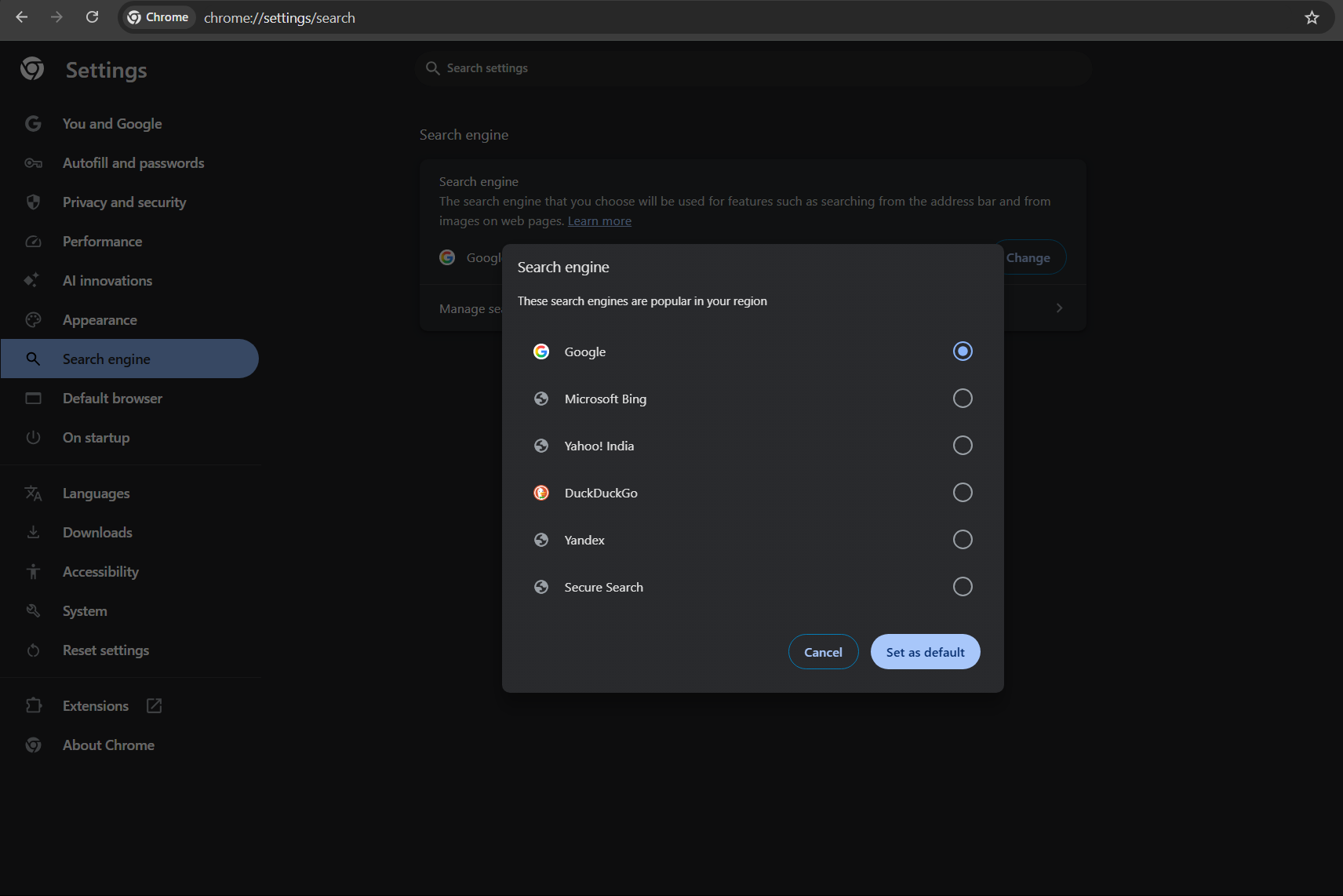
After changing it, test Chrome to see if the problem persists.
Remove Suspicious Chrome Extensions
Many search redirects are caused by malicious or poorly designed extensions.
Follow these steps:
- Open Chrome.
- Click the three-dot menu.
- Select Extensions > Manage Extensions.
- Look for unknown or suspicious extensions.
- Click Remove next to the extension.
Restart Chrome after removing unwanted extensions.
Reset Chrome Settings
If the issue continues, resetting Chrome can restore the default configuration.
- Open Chrome Settings.
- Scroll down and click Reset settings.
- Select Restore settings to their original defaults.
- Confirm by clicking Reset settings.
This removes unwanted changes while keeping your bookmarks and passwords.
Check Installed Programs
Some programs install browser hijackers that modify search settings.
To check installed programs:
- Open Windows Settings.
- Go to Apps > Installed apps.
- Look for unfamiliar or recently installed programs.
- Uninstall anything suspicious.
Restart your computer afterward.
Scan Your Computer for Malware
Running a malware scan can help remove hidden threats.
You can use:
- Windows Security (Microsoft Defender)
- Malware removal tools
- Trusted antivirus software
A full scan may detect browser hijackers that cause search redirects.
Prevent Search Engine Hijacking
To avoid this problem in the future:
- Install extensions only from trusted sources
- Avoid bundled software downloads
- Review installation options carefully
- Keep your browser updated
These habits help prevent unwanted browser changes.
Final Thoughts
If your search engine keeps changing to Yahoo in Chrome, the issue is usually caused by browser extensions or unwanted software. Removing suspicious extensions, resetting Chrome settings, and scanning your system for malware typically resolves the problem.
Once fixed, Chrome should keep your preferred search engine without automatically redirecting to Yahoo.
FAQs
Why does Chrome keep redirecting my search to Yahoo?
This often happens due to browser hijackers, suspicious extensions, or modified search settings.
How do I stop Chrome from changing my search engine?
Remove suspicious extensions, reset Chrome settings, and scan your computer for malware.
Will resetting Chrome delete my bookmarks?
No. Resetting Chrome keeps bookmarks and saved passwords but removes extensions.


Discussion (0)
Be the first to comment.