




iCloud Music Library is the feature that keeps your music collection in sync across iPhone, iPad, Mac, and other supported devices. Apple now labels it as Sync Library, but the functionality remains the same. At the time of writing, it still works with both Apple Music and iTunes Match subscriptions and continues to support matched, uploaded, and purchased tracks.
This guide explains how iCloud Music Library works, how to enable it on each device, and how to manage or fix common issues without risking your local music files.
What Is iCloud Music Library
iCloud Music Library allows you to access your full music library on multiple devices using the same Apple ID. It syncs playlists, albums, and song metadata while making your music available for streaming or offline listening.
The feature matches eligible songs from your library with Apple’s catalog and uploads tracks that are not available, making them accessible everywhere.
How iCloud Music Library Works
Once enabled, the Music app scans your library and checks each track against Apple’s catalog. Matching songs become available in high-quality AAC versions, while unmatched tracks upload to Apple’s servers.
This process keeps your library consistent across devices without manually transferring files.
How To Turn On iCloud Music Library On Mac Or Windows
Before enabling Sync Library, make sure you are signed in with the same Apple ID used on your other devices and have an active Apple Music or iTunes Match subscription.
- Open the Music app on macOS or iTunes on Windows.
- Click Music or Edit in the menu bar and select Preferences.
- Under the General tab, check Sync Library or iCloud Music Library.
- Confirm by selecting Merge Library.
The initial sync may take time depending on library size and internet speed.
How To Turn On iCloud Music Library On iPhone And iPad
Once Sync Library is active on your computer, enabling it on iOS and iPadOS ensures music stays consistent across devices.
- Open the Settings app.

- Scroll down and tap Music.

- Turn on Sync Library.
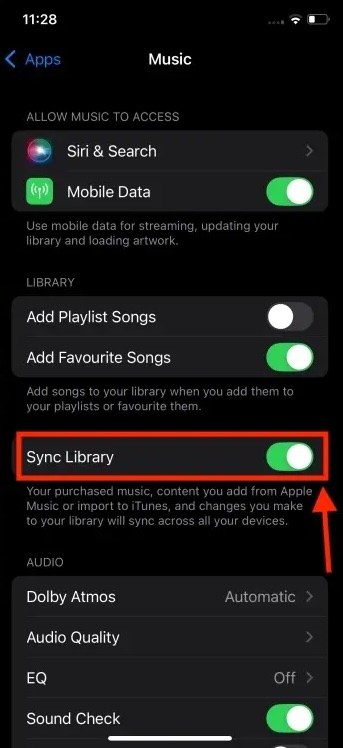
- Choose Keep Music or Delete & Replace when prompted.
Selecting Keep Music is recommended if you previously synced songs from another computer.
How To Play Or Download Music From iCloud Music Library
Once syncing completes, you can stream music directly from the cloud or download songs for offline listening.
- Open the Music app.
- Tap Library and select Songs, Albums, or Playlists.
- Tap a song to stream it.
- Tap the download icon to save it offline.
Downloaded songs remain available even without an internet connection.
Troubleshooting Common Problems
If iCloud Music Library does not sync correctly, a few checks usually resolve the issue.
- Confirm Sync Library is enabled on all devices.
- Ensure you are signed in with the same Apple ID everywhere.
- Restart the Music app and your device.
- Verify your Apple Music or iTunes Match subscription is active.
- Check that Screen Time restrictions are not blocking explicit content.
If songs appear grayed out, licensing changes or connectivity issues may be the cause.
Tips
- Back up your local music files before enabling Sync Library.
- Leave the Music app open during the initial sync.
- Use Wi-Fi for large libraries to avoid interruptions.
- Matched songs may download in higher quality than original files.
- Remember that iCloud Music Library is not a backup service.
FAQ
Is iCloud Music Library the same as Sync Library?
Yes. Apple uses different names for the same feature depending on the device and software version.
Does iCloud Music Library use iCloud storage?
No. Uploaded and matched songs do not count against your iCloud storage limit.
What happens if I cancel Apple Music or iTunes Match?
You lose access to cloud syncing and streaming, but locally downloaded files remain.
Can I manually sync music after enabling Sync Library?
No. Manual syncing through Finder or iTunes is disabled while Sync Library is active.
Summary
- iCloud Music Library syncs music across multiple devices.
- It matches or uploads songs using Apple’s catalog.
- Apple Music or iTunes Match is required.
- Proper setup ensures seamless streaming and downloads.
Conclusion
iCloud Music Library simplifies music management by keeping your library consistent across devices. Once properly enabled, it removes the need for cables, manual transfers, and duplicate playlists, making music access seamless wherever you listen.


Discussion (0)
Be the first to comment.