


 Published on 04.11.2025
Before you join a Zoom meeting, test your audio, camera, and connection. A quick check prevents awkward delays and helps you look professional. This guide shows you how to test the defining features of Zoom before the start of your meeting, with some tips to make sure the app works as expected.
1) Join a Zoom test meeting (fastest method)
Use Zoom’s test page to simulate a real call. You can verify your microphone, speakers, and camera in one place. To get started, go to the Zoom test meeting page (https://zoom.us/test). Next, click Join and allow your browser to open Zoom.

From here, follow the prompts to confirm if your camera, speaker, and microphone is working well.
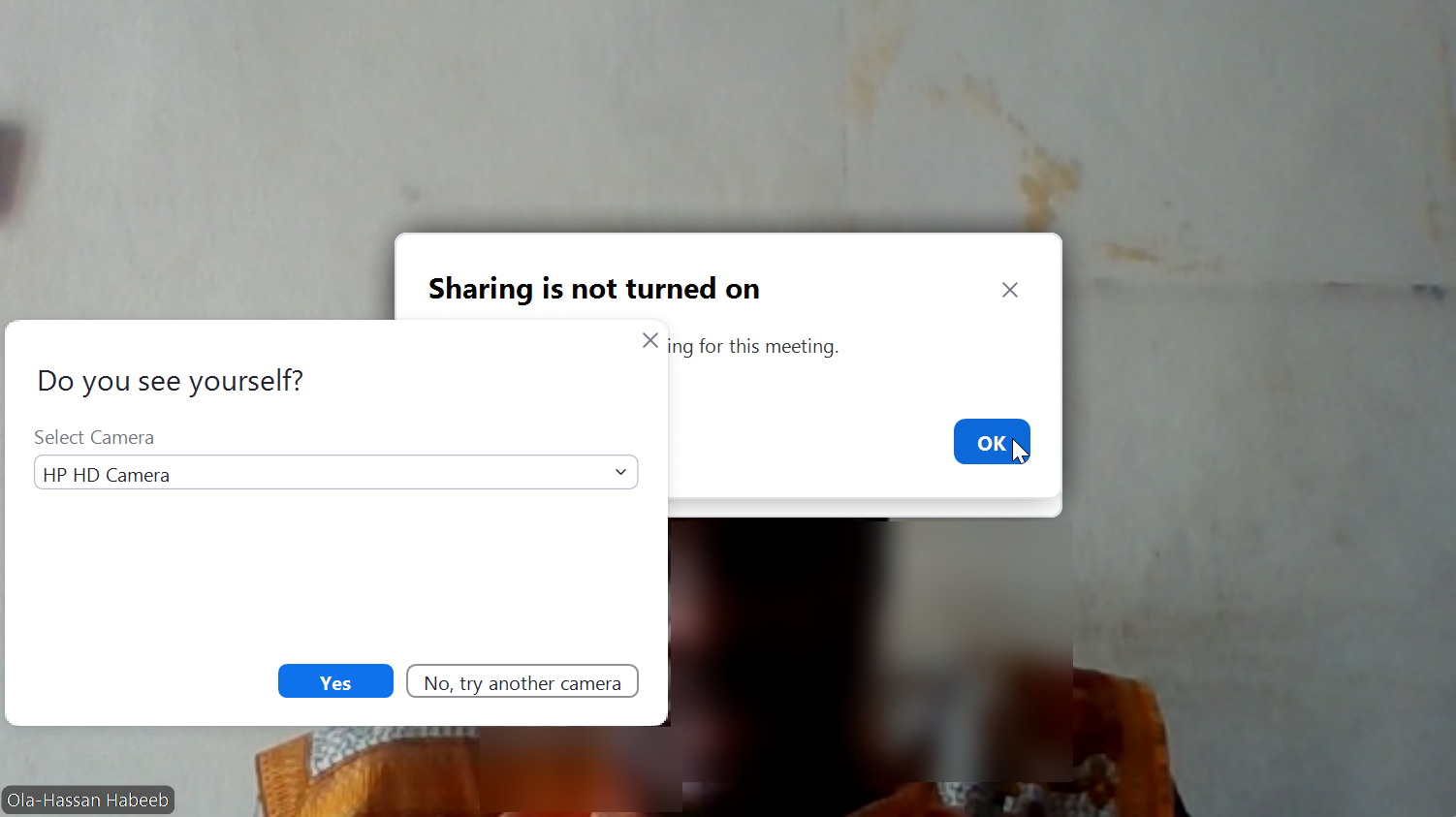
Pro tip: If your audio or video fails, open Settings > Audio or Settings > Video and pick the right devices. Close other apps that use the mic or camera. Restart Zoom if needed.
2) Test Zoom settings manually in the app
Zoom lets you test devices anytime from the settings menu. This is helpful before important calls.
Go to Zoom Settings > Audio and click Test Speaker and Test Mic. Adjust the input level or switch to a headset for clearer sound. After this, go to Zoom Settings > Video and confirm the live preview.

Also, enable HD, adjust low light, or use Touch up my appearance if you prefer.
3) Test Zoom on mobile devices
The Zoom app on iOS and Android includes audio and camera tests. Steps vary slightly by platform.
On iPhone or iPad, open the Zoom app and go to Settings > Meetings. Now, run the speaker and mic test. Finally, go to iOS Settings and confirm Zoom has camera and mic permissions.
On Android devices, go to Settings > Meetings in the Zoom app. Enable video preview and test the speaker and microphone. Lastly, confirm Android permissions for the camera and mic.
4) Test screen sharing and backgrounds
If you plan to present, test screen share, and backgrounds in advance for a smooth flow. To test screen share, start a new meeting by yourself and click Share Screen, and pick a window or app. Confirm the shared view matches what attendees should see.

For virtual background or filters test, go to Settings > Video & Effects. Try blur or a static image. Move slightly to confirm the background does not flicker or crop your outline.
5) Test network stability and internet speed
A stable connection prevents lag, audio dropouts, and frozen video. Simply search internet speed test in your browser and select one of the top results. Check your internet speed on the website.

Aim for at least 2 Mbps upload and 2 Mbps download for basic calls. If possible, use a wired Ethernet link for steady performance. To optimize your network, close extra tabs and heavy apps, pause large downloads on your network, and place your device closer to the router if you use Wi-Fi.
6) Host vs. participant testing scenarios
If you’re the host, start a private test meeting. Check waiting room, recording, and share permissions. Confirm co-host and chat settings to avoid surprises.
As a participant, test your devices and join the link. Ensure you can connect without sign-in issues and hear the host clearly.
7) Do a full rehearsal meeting
Schedule a 5 to 10-minute mock call with a colleague. Practice sharing your screen, adjusting the camera height to eye level, and refining the lighting and background.
Tips for testing Zoom effectively
- Test 10-15 minutes before the meeting.
- Keep Zoom updated to the latest version.
- Use a headset to reduce echo and noise.
- Place the camera at eye level for natural framing.
- Avoid a strong backlight to prevent a dark image.
FAQs
Can I test Zoom without an account? Yes. You can use the official test meeting link in a browser or the Zoom app without signing in.
How early should I test before a meeting? Test about 10 minutes early. This gives you time to switch devices or fix settings.
Does Zoom save test recordings? No. A test is not recorded unless you manually turn recording on.
Summary
- Join a Zoom test meeting to verify audio and video quickly.
- Use Zoom settings to fine-tune the mic, speakers, and camera.
- Test on desktop and mobile if you might switch devices.
- Check screen share, background, and network speed.
- Run a short rehearsal call to confirm everything works.
Conclusion
Testing Zoom before your meeting only takes a few minutes but can prevent major disruptions. By checking your audio, video, and internet connection in advance, you’ll join the call smoothly and appear well-prepared. Always run a quick test meeting, verify your settings, and confirm your equipment works properly for a confident, stress-free start.
Discussion (0)
Be the first to comment.