


 Published on 04.12.2025
Setting up an Elgato capture card takes only a few steps once you understand the wiring and software requirements. This guide shows you how to connect your console or PC, configure OBS, and solve common signal and audio issues.
Table of contents
Understanding how Elgato capture cards work
Elgato capture cards take HDMI video from your console or PC and send it to your computer for recording or streaming. They also pass video through to your TV or monitor so you can play without lag.

Supported devices and requirements
Elgato works with PlayStation, Xbox, Nintendo Switch, and Windows PCs. Your exact resolution and frame rate depend on the model you use.
Choosing the right Elgato model
Models like the HD60 X and HD60 S+ work well for 1080p and 1440p setups. The 4K60 Pro handles 4K capture and fits into a desktop PC through a PCIe slot.
Step-by-step: How to set up your Elgato capture card
These steps guide you through the wiring and software configuration.
Step 1: Preparing your hardware
Before you can use the HDMI capture card, ensure you have your console, the HDMI cable that goes into the capture card’s input, an HDMI cable for passthrough, and the USB cable that connects Elgato to your PC.
Step 2: Connecting the HDMI cables
Connect the console’s HDMI output to the Elgato input. Connect the Elgato output to your TV or monitor. Disable HDCP on PlayStation if you get a black screen.

Step 3: Connecting to your PC via USB or PCIe
Plug USB-based cards like the HD60 X into a fast USB 3.0 port. Install internal cards like the 4K60 Pro into an available x4 or x16 PCIe slot on your desktop.
Step 4: Installing Elgato’s software
Download and install Elgato Game Capture or 4K Capture Utility from the official site. These tools help you verify the video signal and adjust capture quality.

Step 5: Setting up OBS Studio with Elgato
Add your Elgato as a new Video Capture Device source in OBS. Set the resolution and FPS to match your console output for clean recording.
Console-specific setup instructions
Each console has different HDMI and video options.
Set up Elgato with PlayStation
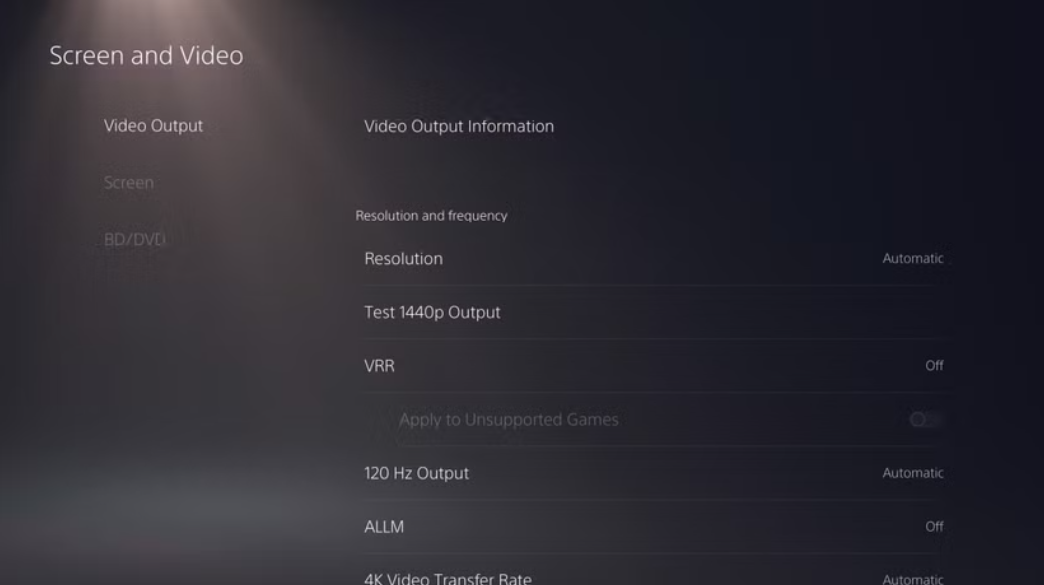
Turn off HDCP in Settings > System. Set your resolution to 1080p or 4K based on your Elgato model. This avoids handshake and black screen issues.
Set up Elgato with Xbox
Open Settings > General > TV & display options and choose a supported resolution. Turn off Dolby Vision for more stable capture.
Set up Elgato with Nintendo Switch
Use the Switch dock to output HDMI. Handheld mode does not send video over USB-C. Set the dock to 1080p for best compatibility.
Using Elgato with a dual-PC streaming setup
Many streamers use one PC for gameplay and another for broadcasting. The Elgato passthrough makes this simple by sending a clean video to the streaming PC.
Routing audio between two PCs
Use Elgato Wave Link, VoiceMeeter, or a simple line-out cable if you want physical routing. This keeps your microphone and desktop audio in sync.
Optimizing your Elgato settings for the best quality
Tuning your settings helps you get sharp recordings with fewer encoding issues.
HDR, 4K, and high frame rate settings
Cards like HD60 X support 4K60 passthrough but record at 1080p60. The 4K60 Pro records true 4K60. Match your console output to these limits for stable capture.
Reducing capture lag
Enable Game Mode on your TV or monitor and use Elgato’s Low Latency mode in software. This keeps input delay low when recording fast games.
Troubleshooting common Elgato problems
- Black screen or no signal fixes: Check the HDMI direction, disable HDCP, and match the refresh rate to what your capture card supports. Swap cables if the signal cuts out.
- Audio not capturing or out of sync: Confirm the correct audio device in OBS. Set your console to output stereo PCM if you lose sound during capture.
- Passthrough not working: Force your console to output a supported resolution such as 1080p60. Some cards do not support 1440p or VRR during capture.
Tips
- Use high-speed HDMI cables to avoid random signal loss.
- Keep the Elgato connected to a powered USB 3.0 port.
- Turn off HDR if you see washed-out colors during capture.
- Restart the capture software after changing console resolution.
- Keep your GPU drivers updated when using OBS on PC.
FAQs
Does Elgato support 4K recording? Only certain models support 4K capture, such as the 4K60 Pro. Other models support 4K passthrough but record at 1080p. The exact limits vary by device.
Why is there an audio delay in OBS? Audio delay usually appears when the capture card and display run at different refresh rates. Set your console to stereo PCM and enable Low Latency mode in Elgato’s software to reduce lag.
Can I use Elgato with a laptop? Yes, as long as the laptop has a USB 3.0 port and meets the minimum CPU and GPU requirements for OBS. Lower-powered laptops may struggle with high-bitrate recording.
Summary
- Connect the console HDMI to the Elgato input.
- Connect the Elgato output to your display.
- Plug the capture card into your PC through USB or PCIe.
- Install Elgato’s software and confirm the video signal.
- Add the Elgato source in OBS and adjust resolution and FPS.
You now know how to wire the hardware, set up your software, and troubleshoot signal issues. Taking time to match your output resolution and settings ensures smooth, high-quality captures every time.

Discussion (0)
Be the first to comment.