




Playing Minecraft on an Amazon Fire tablet takes only a few minutes when you install it correctly and set the right permissions. Fire tablets run the Bedrock edition, which supports cross-platform play and works well with Amazon Kids profiles once you configure account access.
This guide shows you how to install Minecraft, sign in with your Microsoft account, enable multiplayer, fix common errors, and improve performance on Fire tablets.
1) Install Minecraft on your Fire tablet
Before you begin the installation, check your tablet compatibility. Fire HD 8 and Fire HD 10 models handle Minecraft smoothly.
To get started, open Settings > Device Options. Now, check the Model and Fire OS Version. Also, if storage runs low, free up space before installing.

Next, open the Amazon Appstore, type Minecraft in the search bar, and tap Buy or Install. Wait for the download to finish, then tap Open. If you purchased Minecraft on another Fire tablet, make sure you're signed into the same Amazon account.

When the app is open, go to Settings > Apps > Minecraft and select Permissions. Now, enable Storage and Network. These permissions prevent world-creation errors.
2) Play Minecraft on an Amazon Kids profile
Amazon Kids blocks several permissions by default, which stops Minecraft from launching or loading accounts. Adjusting a few toggles fixes this quickly.
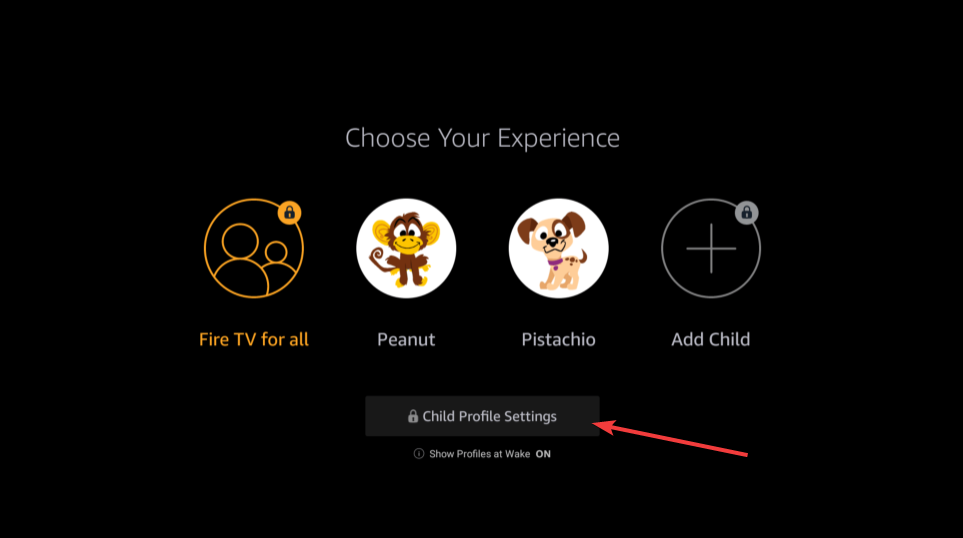
Open Settings and tap Profiles & Family Library. Next, select your child’s profile, tap Add Content, and enable Minecraft. The game now appears on the child’s home screen.
Now, you need to allow Microsoft account and multiplayer access to be able to use them. Go to Child Profile Settings > Web & Content Settings. Enable features that allow sign-ins and network access.
3) Sign in with your Microsoft or Xbox account
Open Minecraft and tap Sign In. Enter your Microsoft account details and return to the game to confirm you're signed in.
Once signed in, your character, purchases, and worlds sync automatically.
Tip: If sign-in loops or fails, sign out and sign in again, clear the Minecraft app cache, restart the Fire tablet, and remove and re-add the Microsoft account.
4) Join multiplayer games on a Fire tablet
Minecraft Bedrock supports cross-platform play, including Xbox, Windows, PlayStation, and mobile.
If you see multiplayer disabled, adjust your Microsoft privacy settings to allow joining realms, LAN games, and cross-play. This unlocks all multiplayer tools.
Join worlds on local Wi-Fi
Open Minecraft on both devices and make sure both connect to the same network. Host the world on one device, then tap Friends → select the LAN world.
Tip: If you subscribe to Realms, the server appears under the Realms tab. Tap the server to join your world instantly.
5) Troubleshooting Minecraft on Fire tablets
- Missing storage permission: Open Settings → Apps → Minecraft, then tap Permissions. Now, enable Storage, and this should resolve instant world-creation failures.
- Amazon Kids is blocking the game: Make sure your child's profile allows app usage, web access, and sign-ins.
- Fix crashes or freezes: Force-stop Minecraft, clear cache only (not data), restart the tablet, update Fire OS, and reinstall Minecraft if needed.
- Microsoft account sync issues: If skins or worlds do not load, sign out of Minecraft and sign back in.
- When Minecraft won’t install: Update Fire OS, free at least 2–3 GB of storage, then restart and retry the installation.
Improve performance on Fire tablets
- Lower in-game graphics: Open Settings in Minecraft, reduce Render Distance, disable Fancy Graphics and Beautiful Skies, and reduce Particles. This gives a noticeable FPS boost.
- Free up storage: Delete unused apps, clear cached data, and move large files to an SD card if supported.
- Close background apps: Swipe away apps in the Recents menu to free memory. This helps worlds load faster.
FAQs
Can I use a controller on a Fire tablet? Yes, most Bluetooth controllers pair with Fire tablets and work in Minecraft.
Does Java edition work on Fire tablets? No, Fire tablets only run the Bedrock edition.
Can siblings play together? Yes, as long as each tablet connects to the same Wi-Fi or the family uses Realms.
Does Minecraft cost money on Fire tablets? Yes, the Appstore edition is a paid app. Pricing may vary by region.
Summary
- Install Minecraft from the Amazon Appstore.
- Enable storage and network permissions.
- Add Minecraft to Amazon Kids profiles.
- Sign in with a Microsoft account for multiplayer.
- Join LAN games, friends, or Realms.
- Lower graphics and free storage for better performance.
Conclusion
Minecraft runs well on Amazon Fire tablets when you install the official Appstore version and grant the right permissions. You can unlock multiplayer, Realms, and cloud saves by signing in with your Microsoft account.
With the performance tweaks and fixes above, Fire tablets handle Minecraft smoothly and give kids and adults a simple way to play on the go.


Discussion (0)
Be the first to comment.