




Smart TVs give you plenty of built-in streaming choices, but many users want access to more apps than what’s available in official stores. If you want a wider selection of movies and shows, learning how to install BeeTV on Smart TV is an easy way to expand your options.
BeeTV is a lightweight streaming app with a large content library, and it works on most major Smart TV platforms. Because BeeTV isn’t available in official stores, you’ll install it by sideloading the BeeTV APK using a safe method such as the Downloader app. The steps below work at the time of writing on Android TV, Fire TV, Chromecast with Google TV, and Smart TVs that allow APK installation.
What You Need Before Installing BeeTV
Before you begin, check that your Smart TV or streaming device supports sideloading. This guide applies to Android TV, Google TV, Nvidia Shield, Mi Box, and other models that allow third-party APKs.
- A Smart TV or device with Android TV or Google TV
- The Downloader app (free in most app stores)
- A stable internet connection
- Permission to install apps from unknown sources
Once these are ready, you can install BeeTV safely.
Step 1: Enable Unknown Sources On Your Smart TV
Because BeeTV isn’t listed in official app stores, you must enable permission to install apps from outside sources.
- Turn on your Smart TV and open the Settings menu.
- Select “Apps” or “Device Preferences,” depending on your TV model.
- Open “Security” or “Privacy.”
- Find the “Unknown Sources” or “Install Unknown Apps” option.
- Enable permission for the Downloader app.
This step allows your Smart TV to sideload the BeeTV APK without restrictions.
Step 2: Install The Downloader App
Downloader is the most reliable tool for installing third-party APK files, including BeeTV.
- Open the app store on your Smart TV.
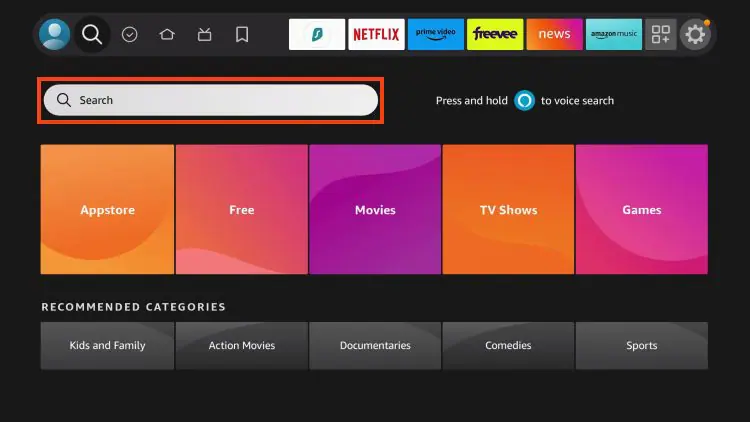
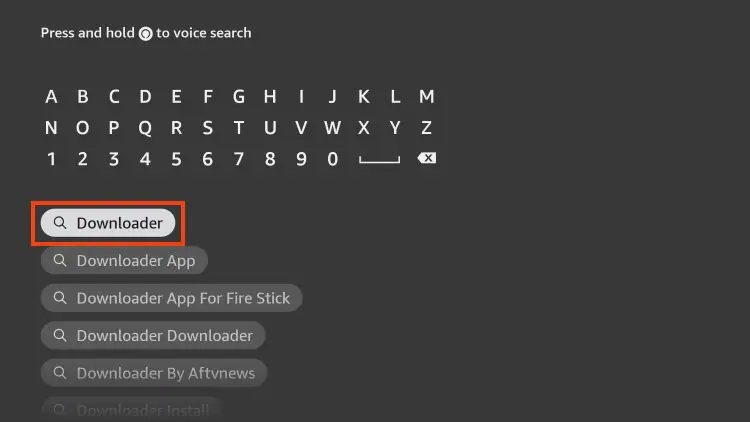
- Search for “Downloader.”
- Select the Downloader app and choose “Install.”
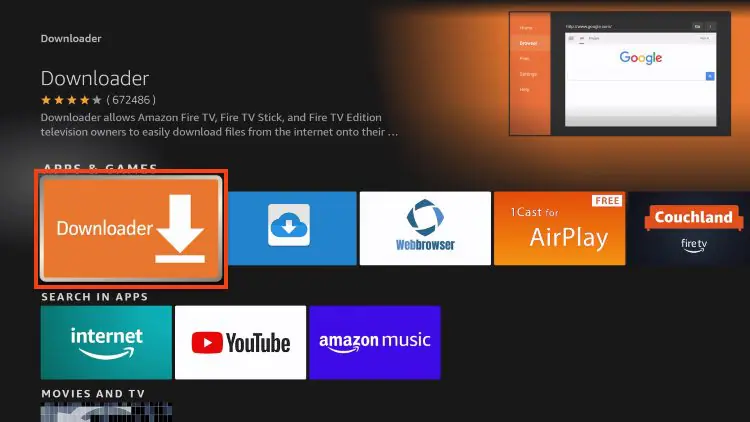
- After installation, launch the Downloader app from your apps list.
Downloader lets you enter a direct link to download the BeeTV APK safely.
Step 3: Download The BeeTV APK File
Now that Downloader is installed, you can fetch the BeeTV APK file from a trusted source. Avoid random websites to reduce the risk of harmful files.
- Open the Downloader app.
- Select the URL field on the home screen.
- Enter a verified BeeTV APK link (from a reputable APK host).
- Select “Go” to download the file.
- Wait for the APK to finish downloading.
Once the file is downloaded, Downloader will automatically prompt you to install it.
Step 4: Install BeeTV On Your Smart TV
After the BeeTV APK file finishes downloading, you can install it in just a few clicks.
- Select “Install” when the Downloader prompt appears.
- Review any permissions requested by BeeTV.
- Choose “Install” again to begin the installation.
- When the installation is complete, select “Done” or “Open.”
BeeTV will now appear in your Smart TV’s app list or home screen, ready for use.
How To Use BeeTV On Your Smart TV
Once installed, BeeTV gives you access to a large collection of movies and shows. The app works with remote control navigation and offers simple browsing categories.
- Open BeeTV from your apps screen.
- Browse by genre, trending titles, or release year.
- Use the search function to find specific content.
- Add items to your watchlist for quick access.
For the best experience, keep BeeTV updated and clear its cache occasionally for smoother performance.
Important Notes Before Installing BeeTV
Sideloading apps always requires caution. Following best practices helps keep your Smart TV secure.
- Download APK files only from trusted, well-known sources.
- Keep Unknown Sources enabled only for apps you trust.
- Update BeeTV regularly to access the latest improvements.
- If your Smart TV blocks unknown apps, use a streaming device like Fire TV or Chromecast.
Conclusion
Learning how to install BeeTV on Smart TV gives you access to more content than most built-in store apps provide. By enabling unknown sources, installing the Downloader app, downloading the BeeTV APK, and completing the installation, you can enjoy a wide range of entertainment on your big screen.
Use trusted APK sites, keep the app updated, and explore BeeTV’s full library to get the most out of your Smart TV. With these steps, you can enjoy flexible streaming options anytime.


Discussion (0)
Be the first to comment.