




If Google Play Store shows a “Something Went Wrong. Try Again” message, the issue usually relates to your Google account, cached data, or network connection. This error can prevent you from downloading apps, updating existing apps, or managing subscriptions, but it rarely requires advanced troubleshooting.
At the time of writing, the fixes below still work on most Android phones, including Pixel, Samsung Galaxy, and other popular devices. Follow the steps in order, starting with the simplest options.
Check Your Internet Connection
Google Play Store requires a stable internet connection to authenticate your account and load app data. Even brief connectivity drops can trigger the error.
- Turn Wi-Fi off, then back on, and reconnect to your network
- Disable mobile data if you are connected to Wi-Fi, then test again
- Restart your router if other devices also struggle to connect
- Restart your Android phone to refresh the network connection
Check Google Play Store Server Status
If your internet works but the error persists, Google Play Store servers may be experiencing a temporary outage. When this happens, the app cannot load content regardless of your device settings.
- Wait several minutes and try reopening Google Play Store
- Retry later if the error appears consistently across multiple devices
Remove And Re-Add Your Google Account
Google account sync issues are one of the most common causes of the “Something Went Wrong” error, especially after a password change.
- Open Settings on your Android phone
- Tap Passwords & Accounts or Users & Accounts
- Select your Google account and tap Remove Account
- Restart your phone
- Return to Accounts and add your Google account again
Check Date And Time Settings
Incorrect date or time settings can prevent Google Play Store from connecting securely to Google servers.
- Open Settings/System.
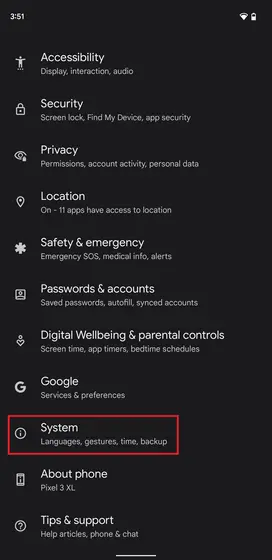
- Tap Date & Time
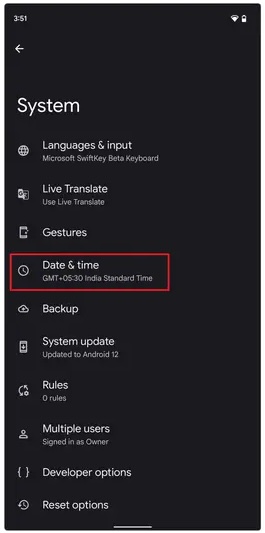
- Enable Set Time Automatically
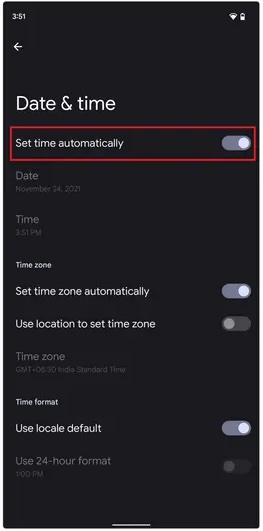
- Enable Set Time Zone Automatically
Force Stop Google Play Store
Force stopping the app clears background processes that may be causing the error.
- Open Settings
- Tap Apps or Applications
- Select Google Play Store
- Tap Force Stop
- Reopen Google Play Store
Clear Google Play Store Cache
Corrupted cache data can stop Google Play Store from loading properly.
- Open Settings
- Tap Apps
- Select Google Play Store
- Tap Storage
- Select Clear Cache
Uninstall Google Play Store Updates
Recent updates can occasionally introduce bugs that cause errors.
- Open Settings
- Tap Apps
- Select Google Play Store
- Tap the three-dot menu
- Select Uninstall Updates
Troubleshooting Common Problems
If the error continues, ensure your device has enough free storage space and that Google Play Services is enabled. Low storage or disabled system services can prevent Play Store from functioning correctly.
Tips
- Restart your phone after making major account or cache changes
- Avoid switching Google accounts frequently on the same device
- Keep automatic date and time enabled at all times
FAQ
Why does Google Play Store keep saying “Something Went Wrong”?
This usually happens due to account sync issues, corrupted cache files, incorrect time settings, or network problems.
Will clearing cache delete my apps?
No, clearing cache only removes temporary files and does not uninstall apps.
Do I need to reset my phone to fix this?
In most cases, no. A factory reset should only be used as a last resort.
Summary
- The error is commonly caused by account, cache, or connection issues
- Most fixes take only a few minutes to complete
- Removing and re-adding your Google account often resolves the issue
Conclusion
The Google Play Store “Something Went Wrong” error is frustrating but usually easy to fix. By checking your internet connection, refreshing account data, and clearing cached files, you can restore full access to apps, updates, and subscriptions without advanced troubleshooting.


Discussion (0)
Be the first to comment.